Categories
Games

Games of 2019

This list should be more complete than last year’s, since I actually kept it updated throughout the year.

I’m making some minor changes to the legend this year. Taking some inspiration from John’s post last year, I’ve decided to re-purpose the star icon to indicate a personal favorite, and added a check mark to indicate I finished a game. I also dropped the “trophy” icon for 100% completions since they’ve become rare.

Legend
🌟 A personal favorite. (Not necessarily for everyone.)
✔️ Beat the game.
👍 Recommended if you haven’t played it.
👎 Avoid it. It’s terrible.

PS4

Spider-Man ✔️ 🌟 👍
Managed to finish it this year, along with its DLC. Fantastic game.

God of War 👍
Lost interest in this one early in the year and never managed to come back. Hoping to finish it some day.

Red Dead Redemption 2 👍
This game looks amazing, and has a lot of depth. I just can’t keep the “run” and “shoot” buttons straight, though… So far, I’ve accidentally shot a guy in the middle of town and punched my horse.

Switch

Super Smash Bros. Ultimate 🌟 👍
Continued playing this into 2019.

Starlink: Battle for Atlas
Still playing this one.

Overcooked! 2
Great with a group. Tough with two players.

Death Cubed
Played a demo with my wife. I like the puzzles, but the movement is annoying. While death is part of the game, it’s frustrating when you clip a corner and go flying off the map.

Splatoon 2
I wish there was a better single-player mode here, since I’m not interested in multiplayer at all.

Hyrule Warriors
It’s like a modern Dynasty Warriors, but fun!

Golf Story
Because all the world’s problems can be solved with golf.

Super Mario Odyssey
This was a really fun game, but I’d like to know what the designers were smoking when they came up with this… A kingdom of sentient hat-people who can possess other creatures? Weird.

Untitled Goose Game
Finally, a game where I have the freedom to be a complete asshole without hurting anyone.

Xbox

I played more Xbox this year thanks to Game Pass. I’m hoping it continues to be a great way to play new games.

Outer Wilds

Crackdown 3

Gears 5

PC

Oxygen Not Included 🌟👍
Still my favorite PC game.

Two Point Hospital 🌟 👍
If you liked Theme Hospital, you’ll like this one.

Elite: Dangerous 🌟
Played with some of the newer content this year. Finally managed to unlock some engineers to tune my equipment, and discovered the new deep core mining added to the game which I find both fun and profitable.

TerraTech 🌟
I’ve played this on and off for a few years. A few updates with new parts pulled me back to it. (I can finally build my hovering fortress!)
If you’ve never played it, it’s a big sandbox game. You can build just about anything you can imagine. You can gather resources around the world; destroy AI-controlled vehicles and collect dropped parts; and take on missions to unlock parts. Easy to sink a lot of time into.

Surviving Mars 🌟
I still love this game. Great music, pretty chill and challenging at the same time. This year introduced the “Green Planet” DLC, which lets you terraform Mars and make it a lush green paradise! As I made Mars greener, I found myself missing the red planet.

Destiny 2 🌟👍
My go-to FPS when I want to just shoot some things. The Season of Opulence this year was a big hit with me. The Menagerie was a fun new mode and I enjoyed being able to somewhat choose my rewards using the chalice.
Destiny’s move to Steam was great, and the Season of Undying introduced a lot of great new content. The new armor system is definitely a step in the right direction. I even got my first title – Undying – after some last-minute grinding that was rewarding but tedious.
And now that Destiny is free to play, it’s easy to recommend.

Scanner Sombre
A spooky VR game where you explore a cave with nothing but a fancy handheld LIDAR device.

BattleTech
A few new DLC packs with new mechs and the skill revamp had me coming back. I finally managed to beat the Smithon mission that was holding me back.

Diablo 3
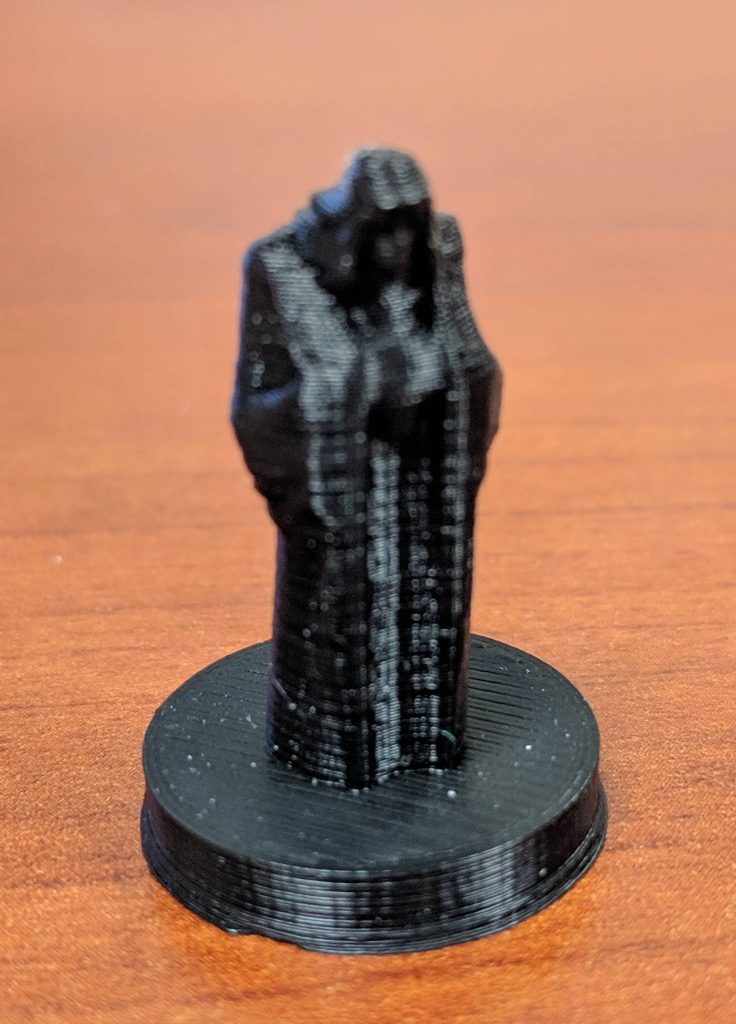
I come back to this every season to play with my wife. Season 16’s free Ring of Royal Grandeur made some interesting builds possible. I played a Barbarian for the first time and named her Barbararian (the Barbarian Librarian).
Season 17 had me back to playing my Necromancer, “LichPlease”, to try out some of the adjustments in the latest patch.
Forts
Simple, fun, a little hectic sometimes.

Driftland: The Magic Revival
An RTS where you move floating islands around and use magical abilities to help your warriors. Feels a lot like Settlers but without the supply chain stuff.

Particle Fleet: Emergence ✔️
An interesting RTS with a short story and support for custom ships and player-made maps. A good challenge without being impossible.

Risk of Rain 2
I played the first Risk of Rain and it was fun but fizzled out pretty quick for me. I was hesitant to play the new one, but got it for my birthday. It’s pretty fun, solo-able (which is important to me these days), and has plenty of unlocks and progression. Sometimes finding the teleporter is a chore, though.

Bad North
It’s like a tiny tactical tower defense game. You get a few armies to defend a small island from invaders, with each map getting more difficult. Certain islands have special rewards, like new armies or special items.

Graveyard Keeper
A management game with a story. This game was pretty tedious at the beginning, but after I had a few zombies handling the basics I was able to have more fun.

Unheard
A fun little puzzle game where the gimmick is that you have to deduce things using an audio track.

Landinar: Into the Void
Take missions, earn money, upgrade your ship, repeat. Fun, but there are lots of games that do this now. The ship building aspect is pretty good.

Star Wars Jedi: Fallen Order 🌟👍
Great gameplay, some slightly annoying platforming. Combat is fantastic.

Cliff Empire
Frostpunk Lite. Starts off easy but things can quickly fall apart. It’s fun to maintain the balance.

Aven Colony
Another Frostpunk Lite. I have a type.

Outer Worlds 🌟
It’s Fallout with a new skin. It’s still as fun as Fallout and I like the hyper-capitalist dystopian world it presents.

Mindustry
Picked up during the Steam sale. It’s a fun little harvesting plus tower defense game with a surprising amount of depth.

Jurassic World: Evolution 👍
Another one from the Steam sale. This one took me by surprise. It’s a theme park game with a lot of genuine Jurassic Park stuff added in – you send teams to dig for fossils, extract dinosaur DNA, incubate dinosaurs and release them into your park. You have to deal with storms and the dinosaurs themselves.

GRIP
A fun combat racing game.

Tabletop

Azul 🌟👍
Easy to play, fun, colorful, and has great components. Highly recommended.

Almost Got ‘Im
I’ve never been a big fan of Coup or Resistance, but this game is similar and much more interesting to play. I accidentally subdued Batman as Catwoman and lost.

Villainous
Fun and well themed. The game seems pretty well balanced, but there is some luck-of-the-draw involved with several of the villains.

Epic Spell Wars: Battle at Mount Skullzfyre
A great game with a lot of humor.

Yokohama Deluxe
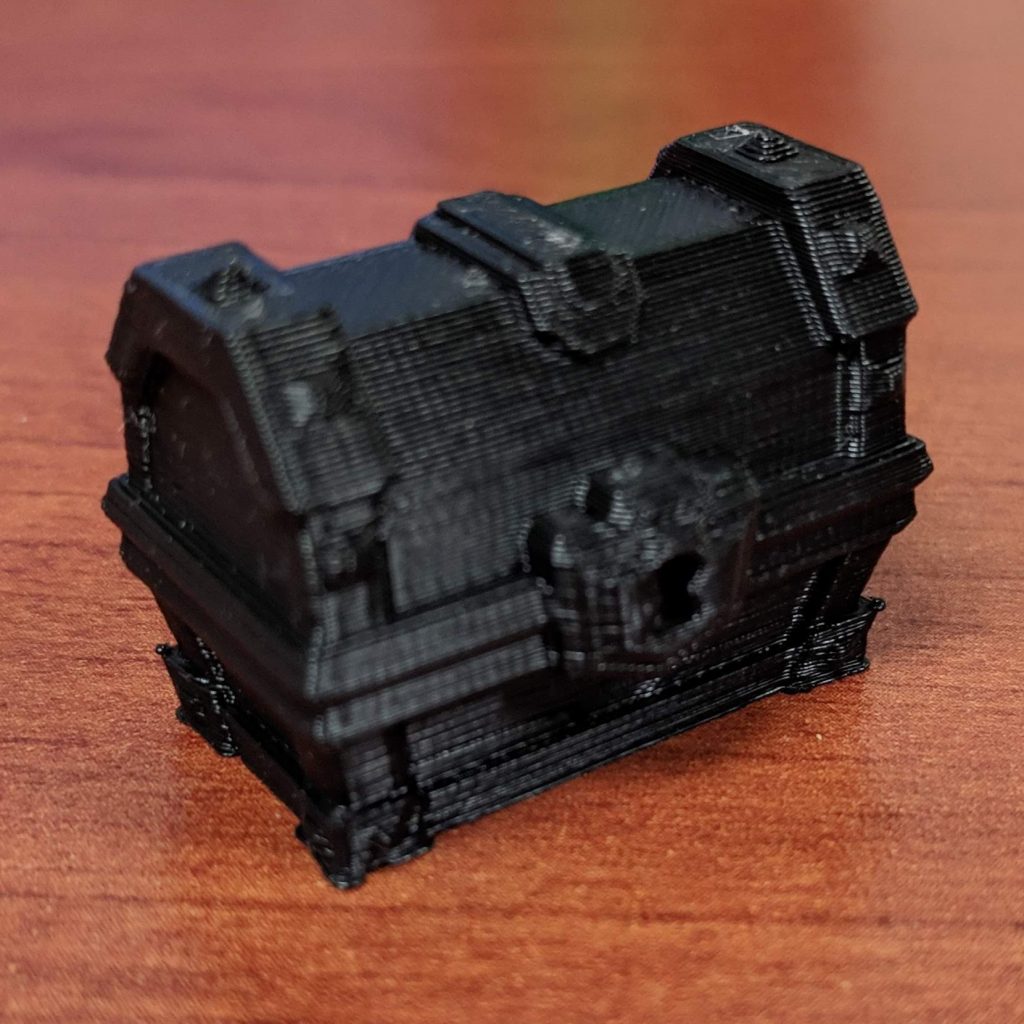
A fun little economic engine builder. Takes a while to play, but there seems to be plenty of replayability. The deluxe version has some really nice components, though the stickers for the point tokens were a bit too large for the wooden token. (I 3D-printed replacements.)

Reef 🌟
Similar to Azul in a lot of ways. Simple to play, fun, and strategic. Played at Mox Boarding House while visiting John and Christina in Seattle.

Jumpdrive
A faster, simpler version of Race for the Galaxy.

DropMix 🌟
Stumbled on this a while back and was interested, but then copies of the base game were dumped at Five Below for $10. Easy buy. This being a Harmonix game, it’s fantastic. And some of how it works is simply magic. Fun to play with a group or even solo. The only drawback is in collecting the cards, which can get expensive.

Splendor 🌟👍
I end up playing this a few times every year. Still fantastic.

Fences
It’s Carcassonne-lite. Easy to play with cute barnyard animals.

Master of the Galaxy
A 4X game I’ve had for a while (backed it on Kickstarter), and finally got a chance to play it with my brother over the holidays. It’s fun and pretty easy to play.

Sagrada 🌟👍
A beautiful game about making stained glass windows using dice. Fun and a perfect amount of difficulty.

Tiny Epic Mechs
As usual for the Tiny Epic series of games, this is a pretty big game in a tiny box. I’m not sure about how well balanced the characters are, but in my one play with my brother, we forgot some resource collection rules that made it very lopsided.

Xtronaut: The Game of Solar System Exploration
Designed by the leader of the OSIRIS-REx mission, this is more of a hard-science game about exploring the solar system. It’s really simple to play and plays very fast.

Categories
3D Printing

Week Two with the Prusa i3 MK3

My second week in 3D printing has had more failures than the first week, but I’ve learned a few things that should help me avoid future failures. (Hopefully.)

I’m still avoiding anything with supports, but some of the things I’ve managed to print without supports still amaze me. I’ll take a look at a model and think, “Nope, that’s not going to work because this bit is out in space”, then I decide to attempt the print anyway and it comes out fine. There’s definitely an art to designing things that don’t require supports, but small overhangs tend to work out pretty well.

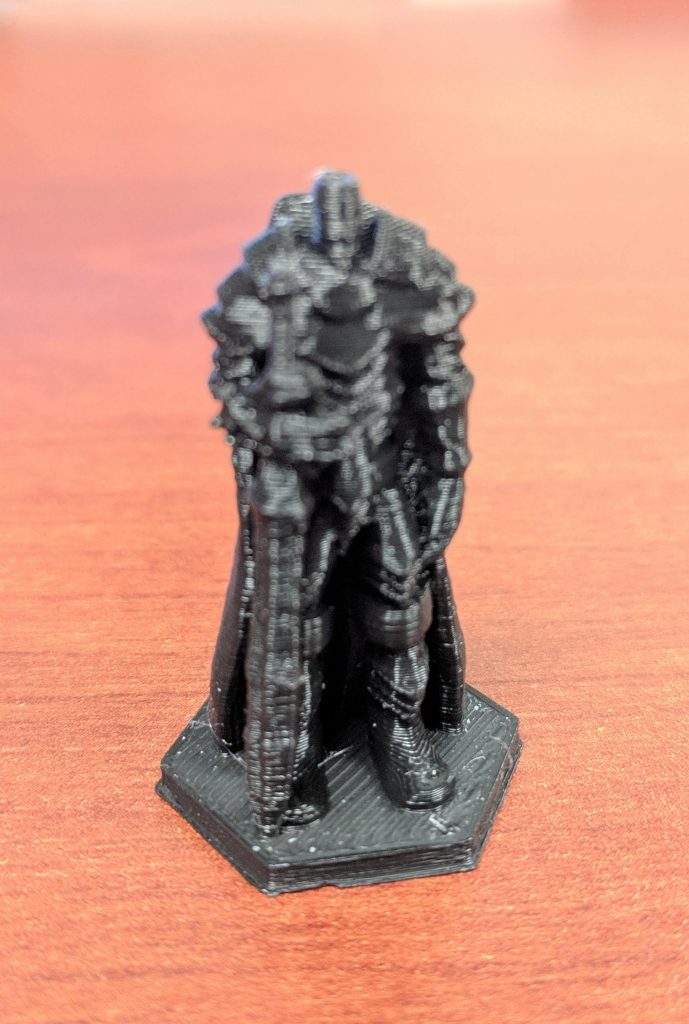
However, even though some things work out great, some things just don’t, even if they look OK. I tried printing a dwarven warrior, but every time it failed with a big, tangled ball of filament. I’m still not sure why it failed where others worked fine.

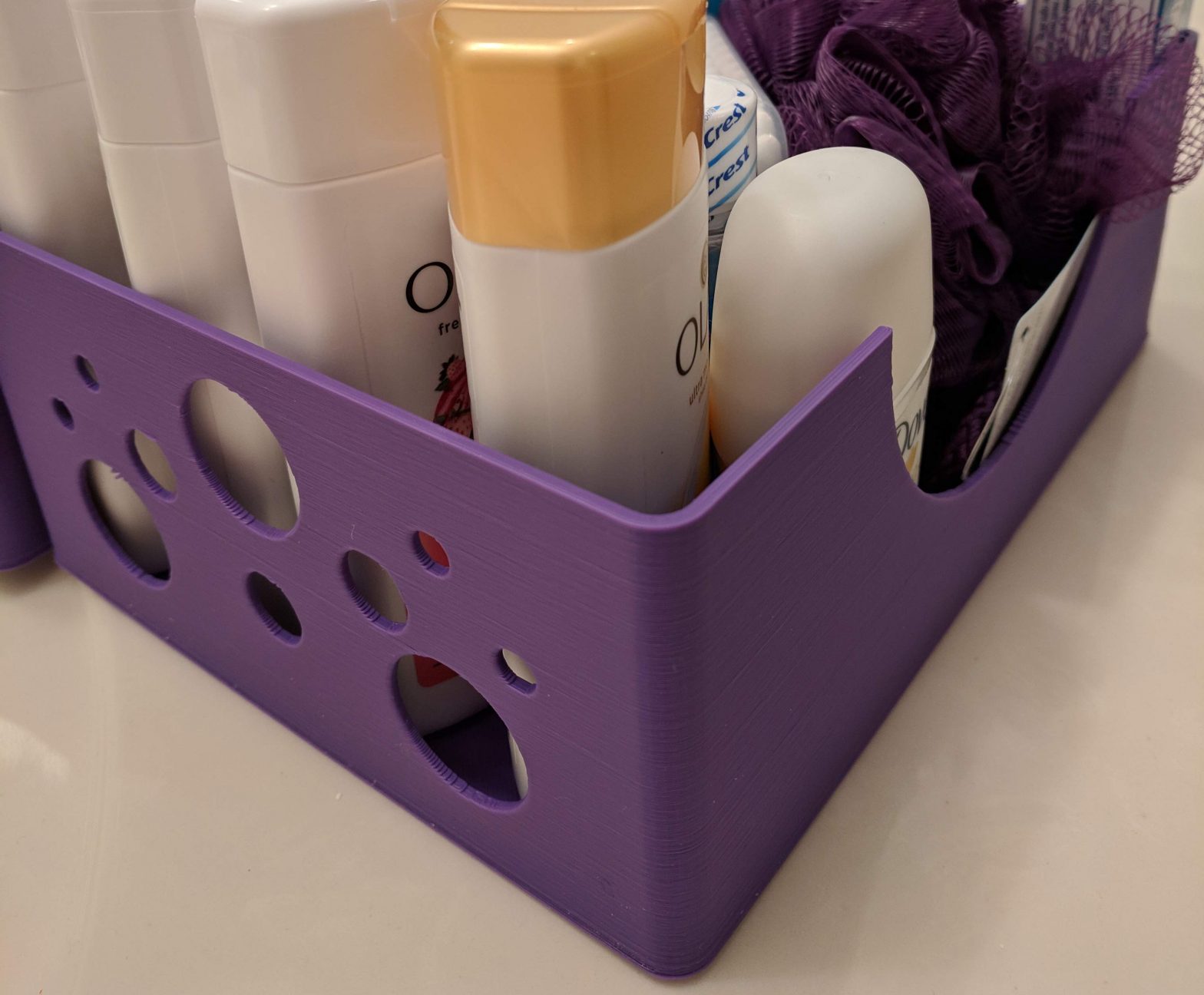
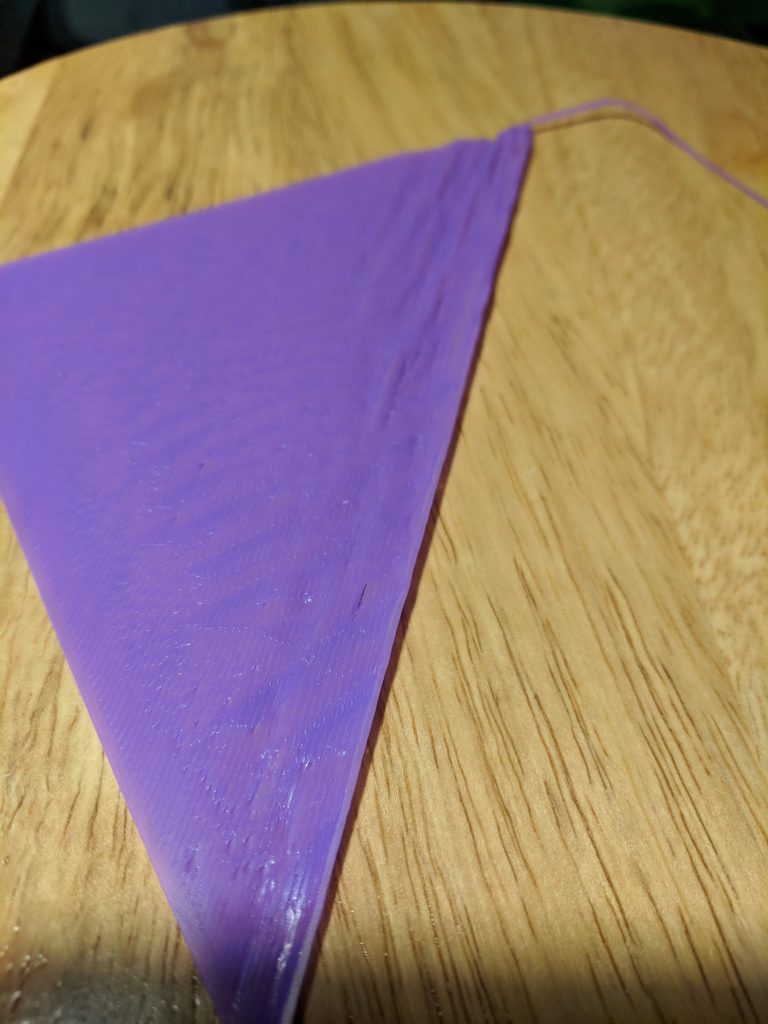
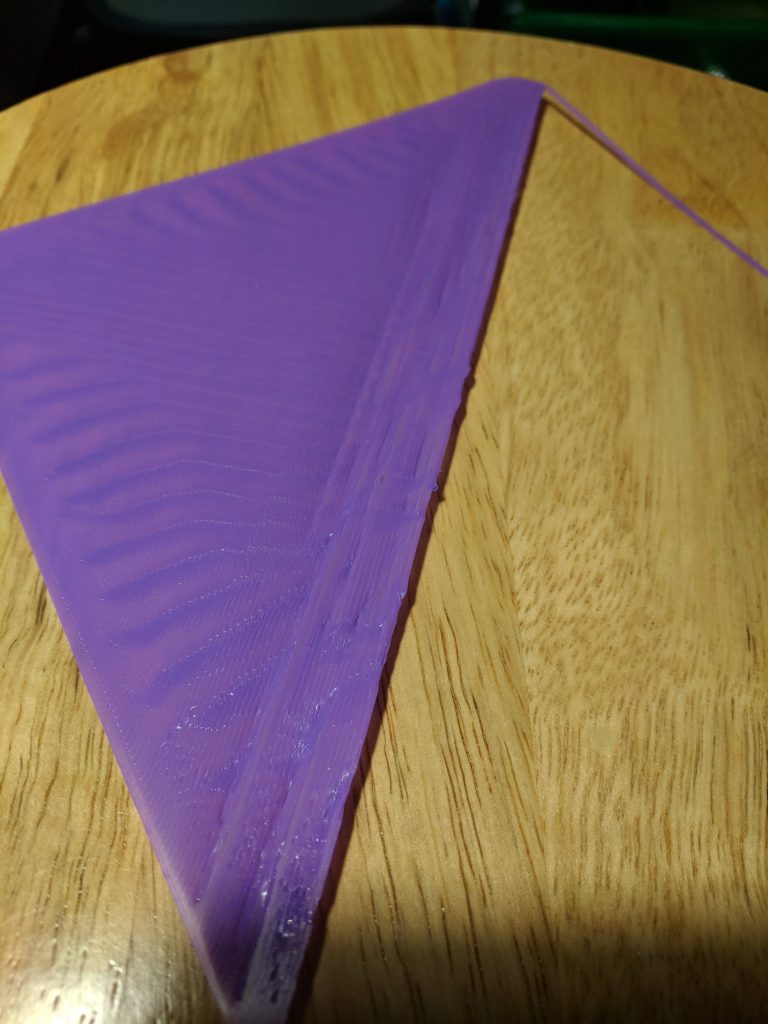
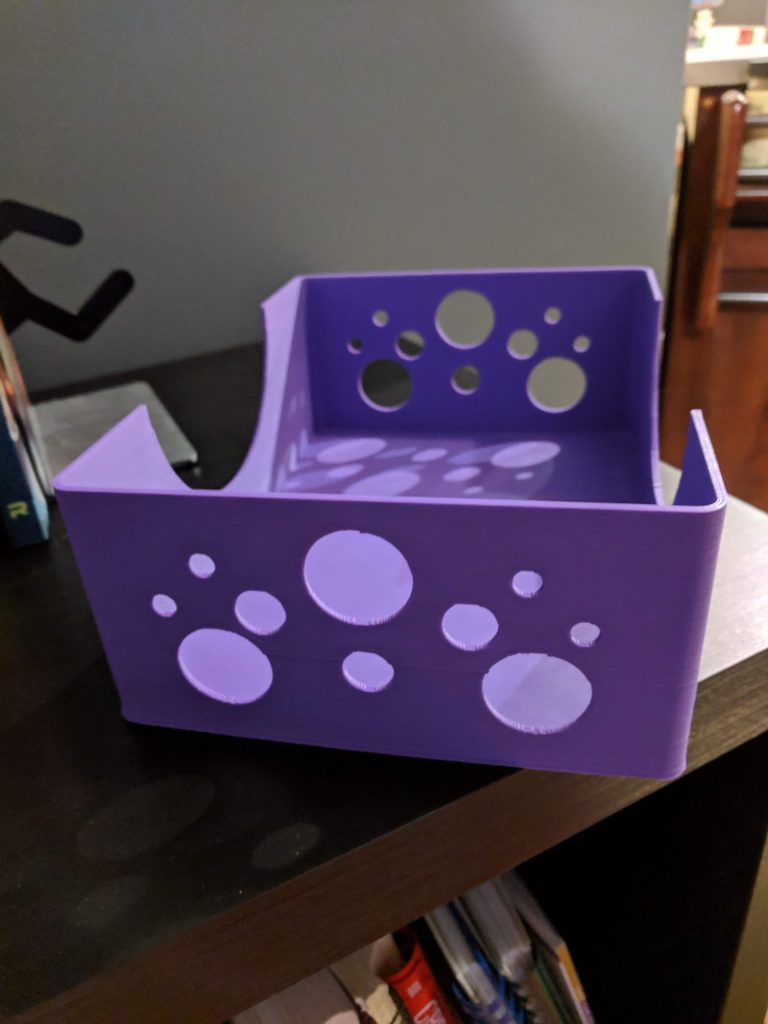
One thing I promised my wife when I got the printer was that I’d print a few baskets for our guest bathroom. My initial designs were pretty simple – flat bottom, a few circles in the sides (like bubbles), and a half-circle scooped out of the side. The first print was going pretty well as it printed the bottom, but about a quarter of the way across, it started to kink up. I tried lowering the bed temperature to let it cool faster, but I ran into the same problem (though a bit later). In theory, I could have lowered the bed temperature to a point where it would have printed fine, but then bed adhesion could have become a problem.

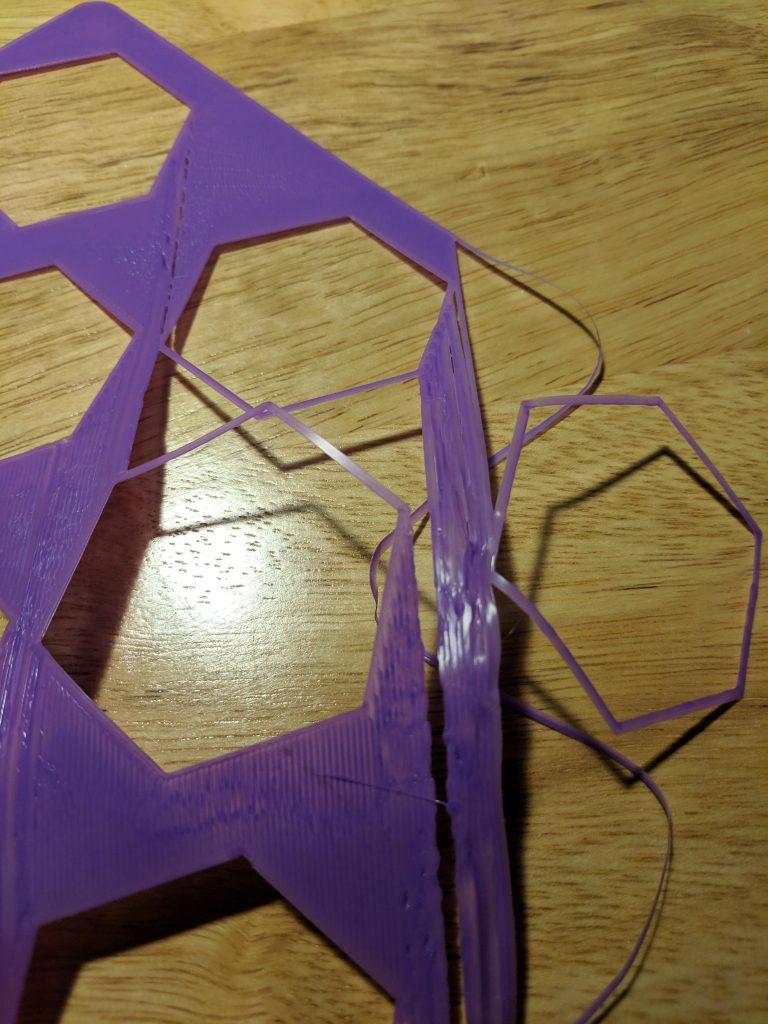
Instead, I tried adding some large hexagons in the bottom to create some air pockets and reduce the amount of large, flat areas to be covered directly on the bed. Unfortunately, I ran into the same problem with some of the flat areas between the hexagons.

Basket Failure #3

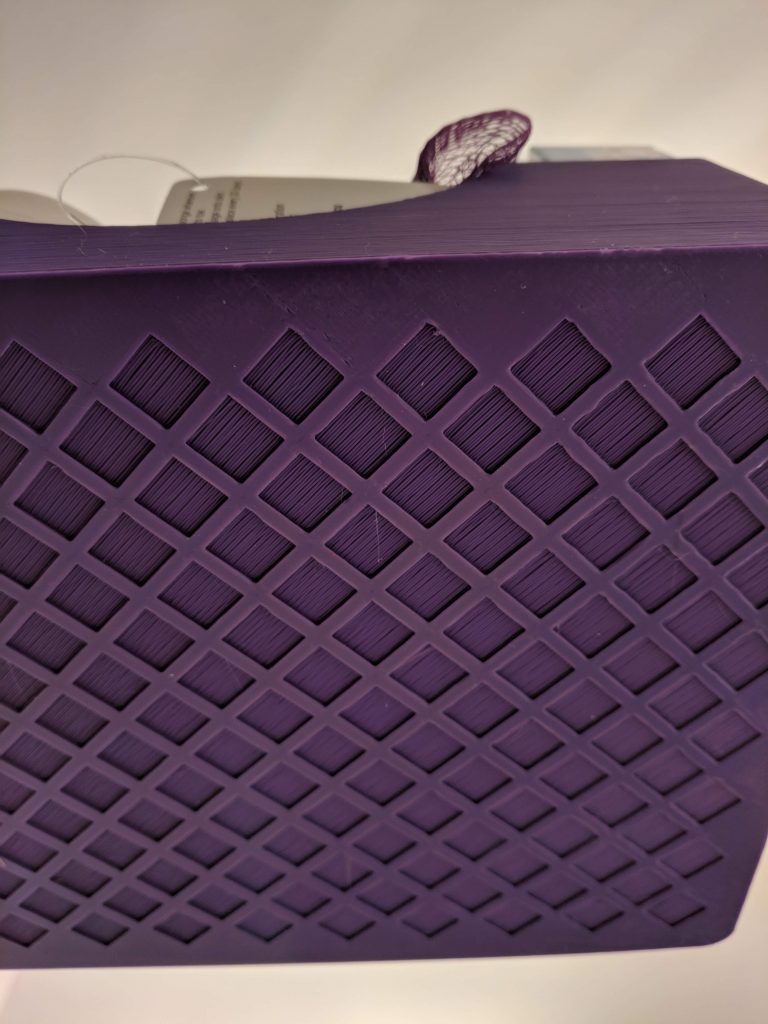
I went back and created a cross-hatch pattern on the bottom with small squares. About seven hours later, I had a completed basket; the new bottom printed without any issues. Lesson learned: large, flat areas directly on the bed tend to be problematic.

My theory here is that as the filament crystallizes, it shrinks just a bit. Over short areas it’s not an issue, but with larger areas it causes a chain reaction. When bridging over gaps, it’s not an issue because the filament gets anchored on either side to filament that’s already hardened and won’t move much.

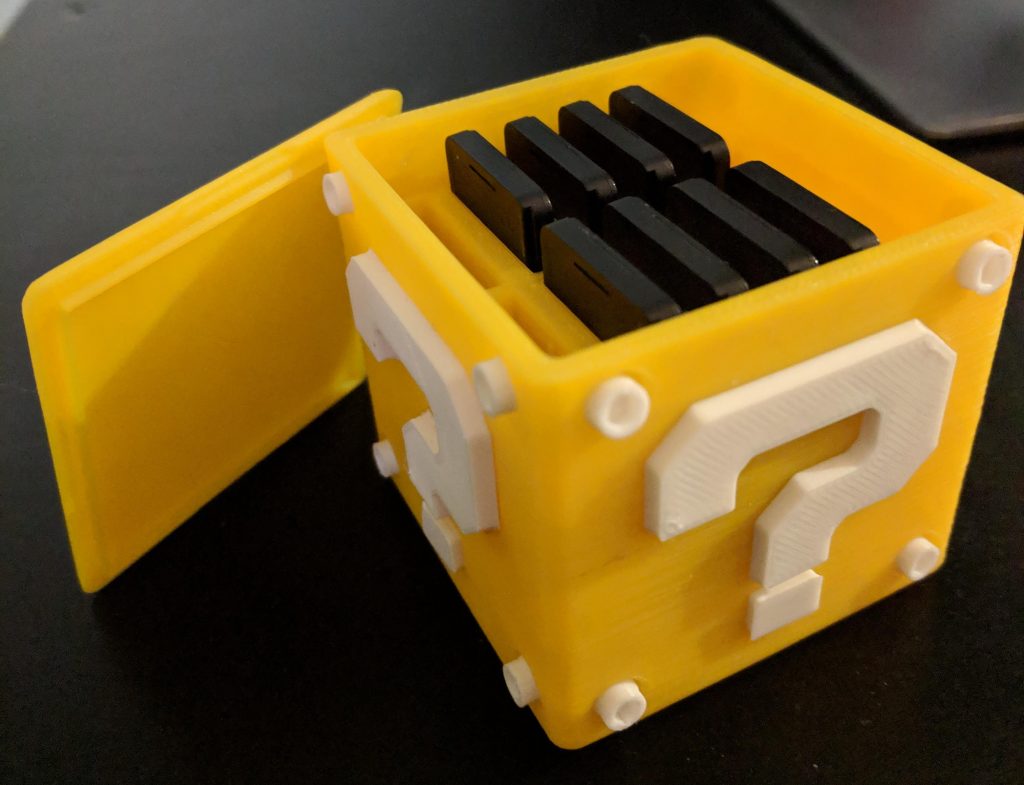
While those baskets were my largest project thus far, I also completed a project that required assembly: a storage case for my Nintendo Switch games. It turned out great. The body of the cube took maybe 5 hours to print, but the other parts were finished pretty quickly.

Categories
3D Printing

Week One with the Prusa i3 MK3

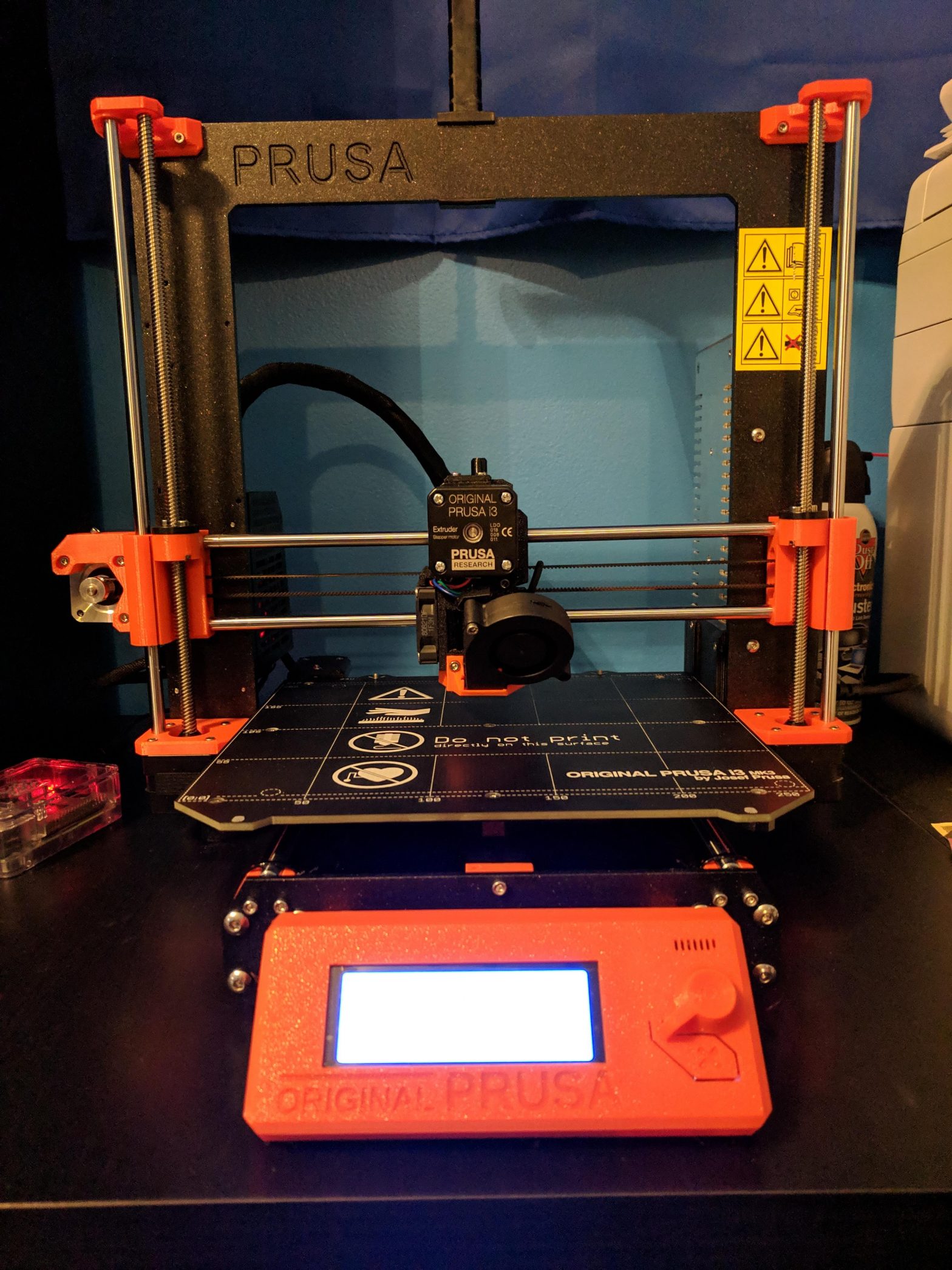
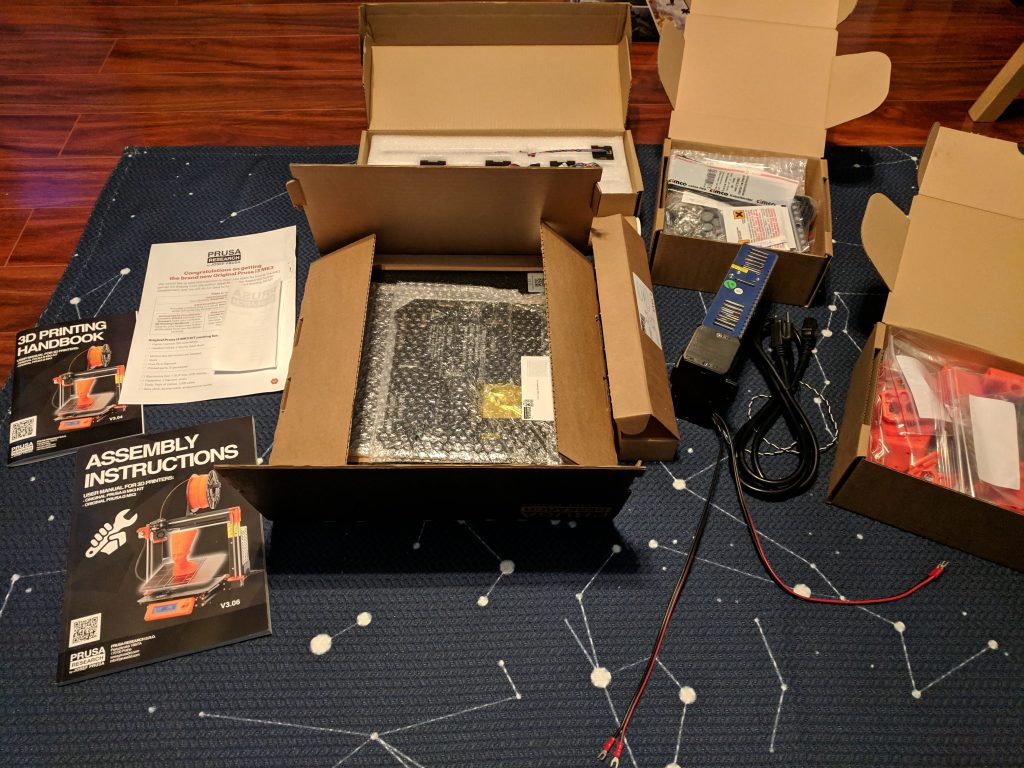
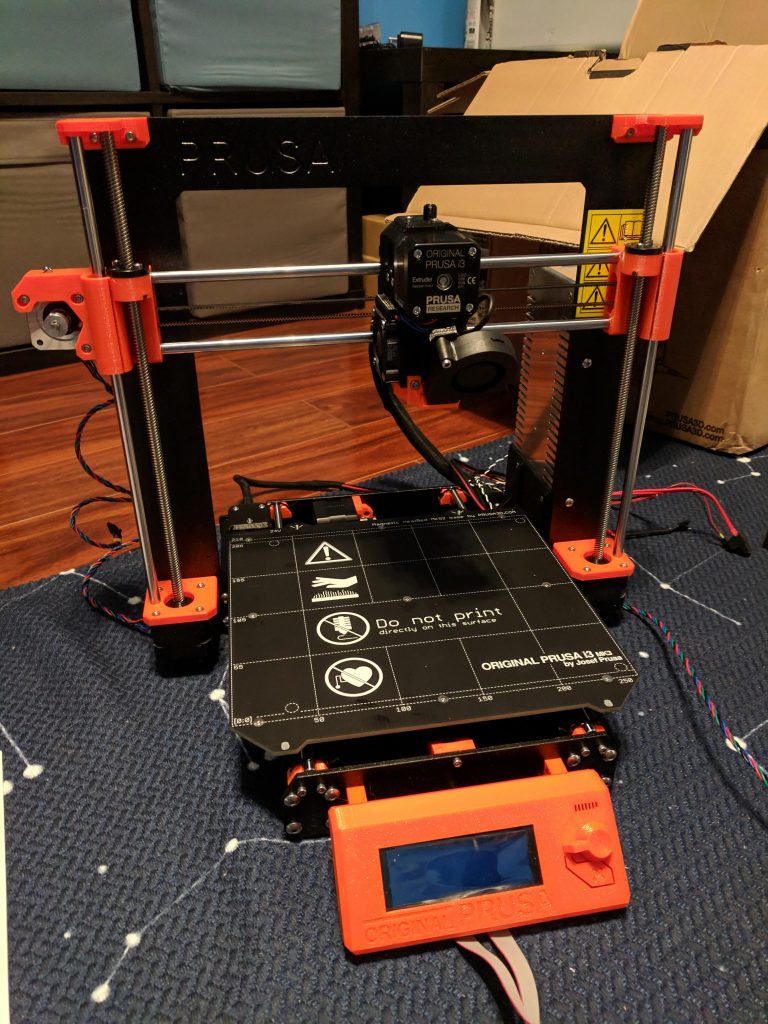
A few weeks ago I bought a Prusa i3 MK3 and it arrived about a week ago. I wanted to document some of the construction and printing process, along with some of what I’ve learned along the way.

Construction

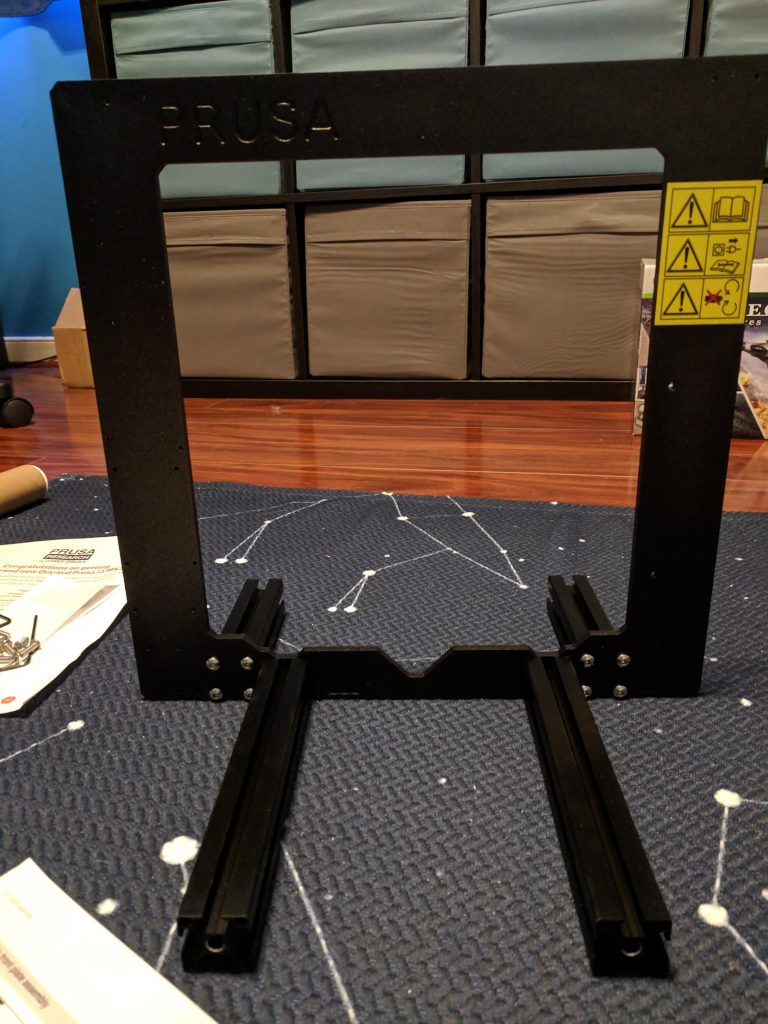
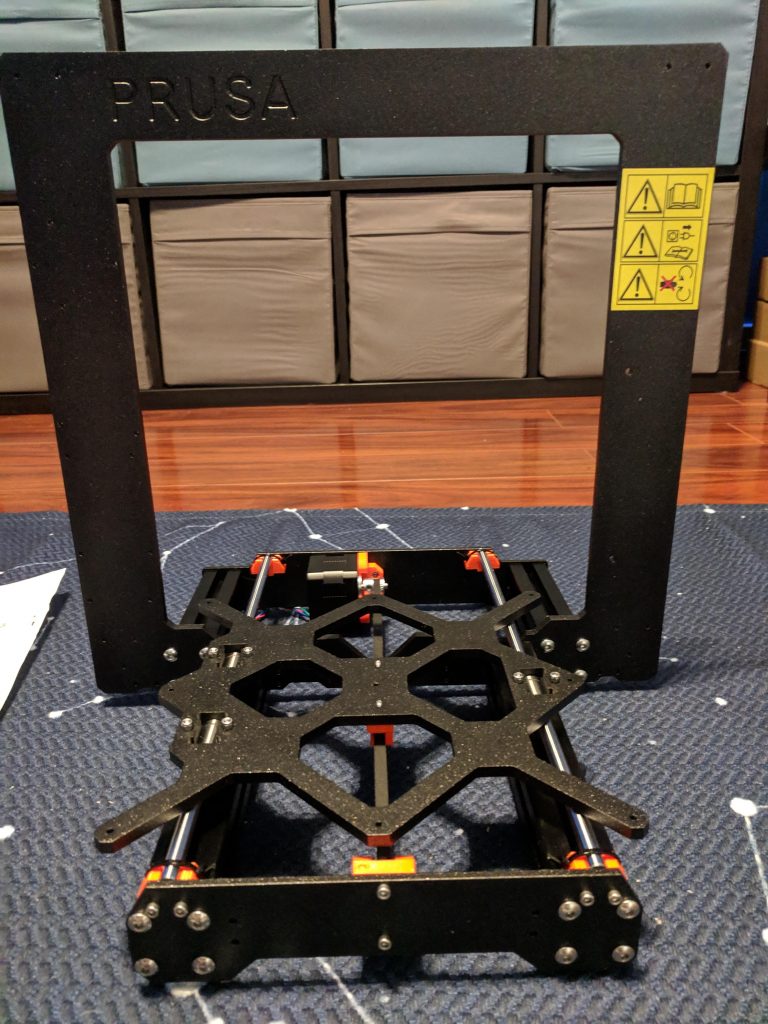
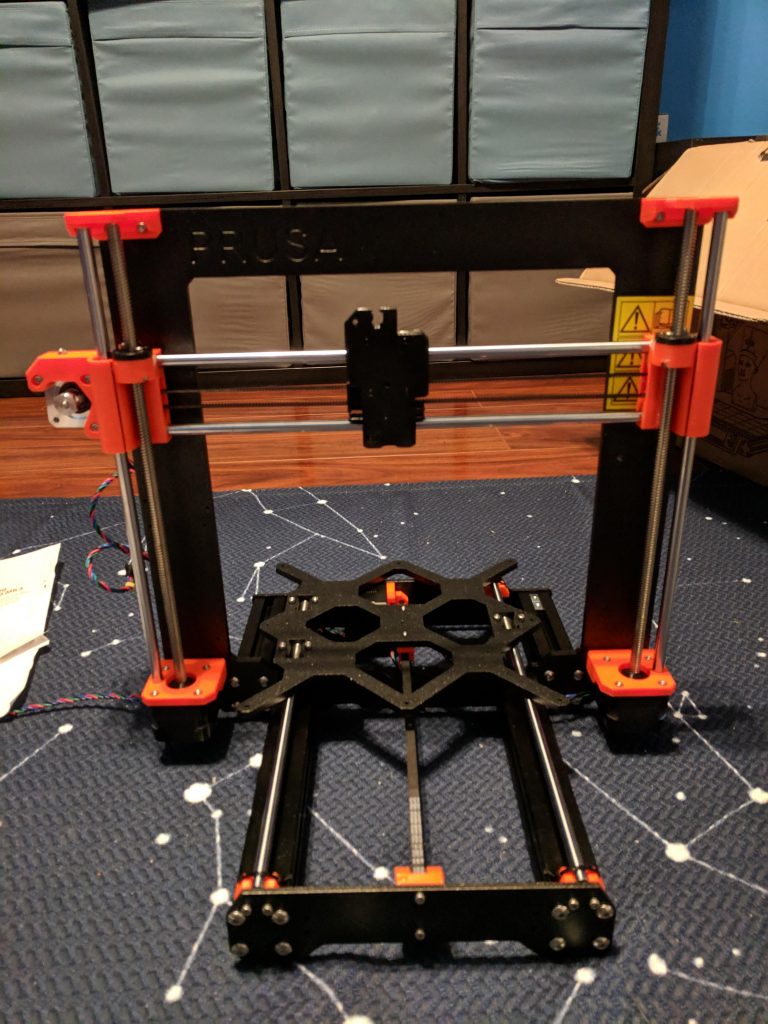
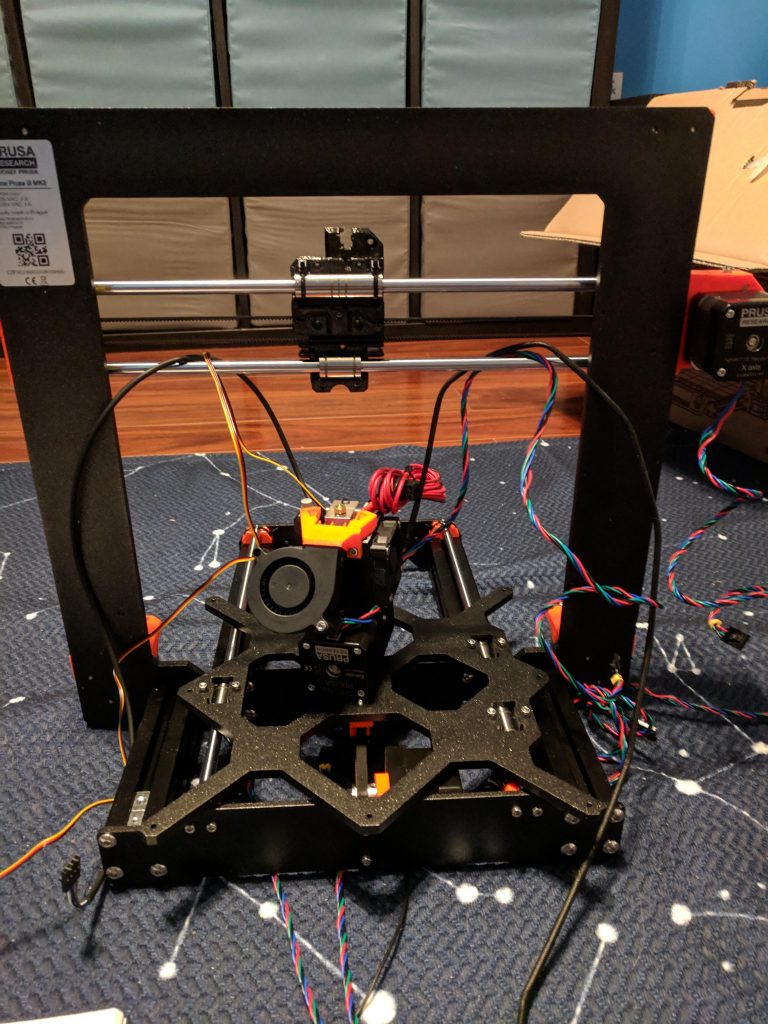
Building the Prusa i3 took a long time – probably about 10-12 hours total. The process was made worse because I didn’t have a decent workspace to build it, so I was sitting on the hardwood floor. If you’re building one of these (or probably any 3D printer), I’d advise having a nice big table to work on.

The instructions from Prusa are very clear, with lots of pictures and color-coded symbols pointing things out. I was pretty careful as I built everything and had my wife double-check my work, but it’s honestly not that difficult to build (just time consuming). There were only a few steps that were a little confusing, but checking the manual online – with bigger pictures and user comments – helped immensely.

Even with how tough building the printer can be, I recommend getting the kit and building it yourself. Not only do you save $150, but you also get a feel for exactly how the printer works and some of the things you can do with 3D printing. At least a third of the Prusa is 3D printed: the supports, LCD housing, mainboard case, and most of the extruder (where things get very hot) are all 3D printed. Building the printer myself helped me appreciate the precision and capabilities of the printer long before I actually started using it.

Startup and Self-Test

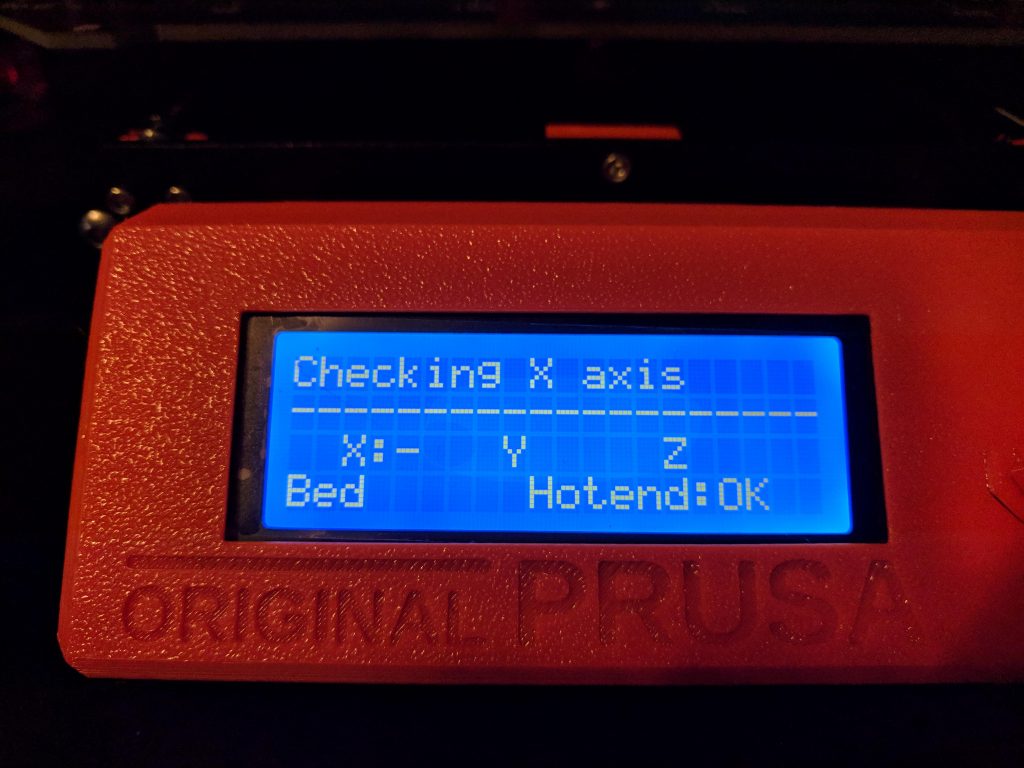
The initial startup was a bit stressful, but luckily I got everything right enough. The self-test takes about 10-15 minutes and the printer guides you through the process. The printer is very friendly, greeting you with a “Hello!” (on-screen) and letting you take your time through the process.

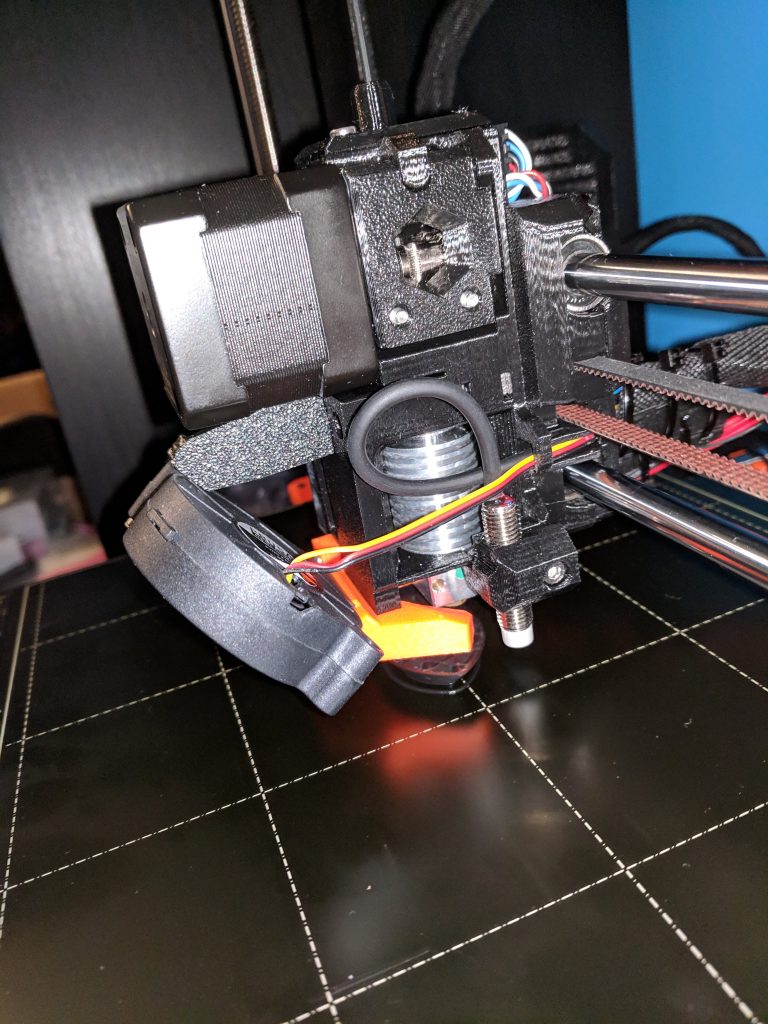
The hardest part of the initial process was the z-axis tuning. Every printer is slightly different and you have to tune your z-axis to get it to lay the filament out nicely on the bed. It’s an extremely slow process and probably took me an hour or more. The printer prints a line back and forth and ends with a little flat rectangle. You can peel it off the bed and look at it to make sure the tuning is right. I went through several iterations before I got it about right. Before doing so, I got it a bit too low, and there are still some marks on my bed where the nozzle maybe hit the surface. (I think I need to get the bed extra hot and try removing the marks.)

Once the self-test and tuning are complete, it’s time to get printing.

Initial Prints

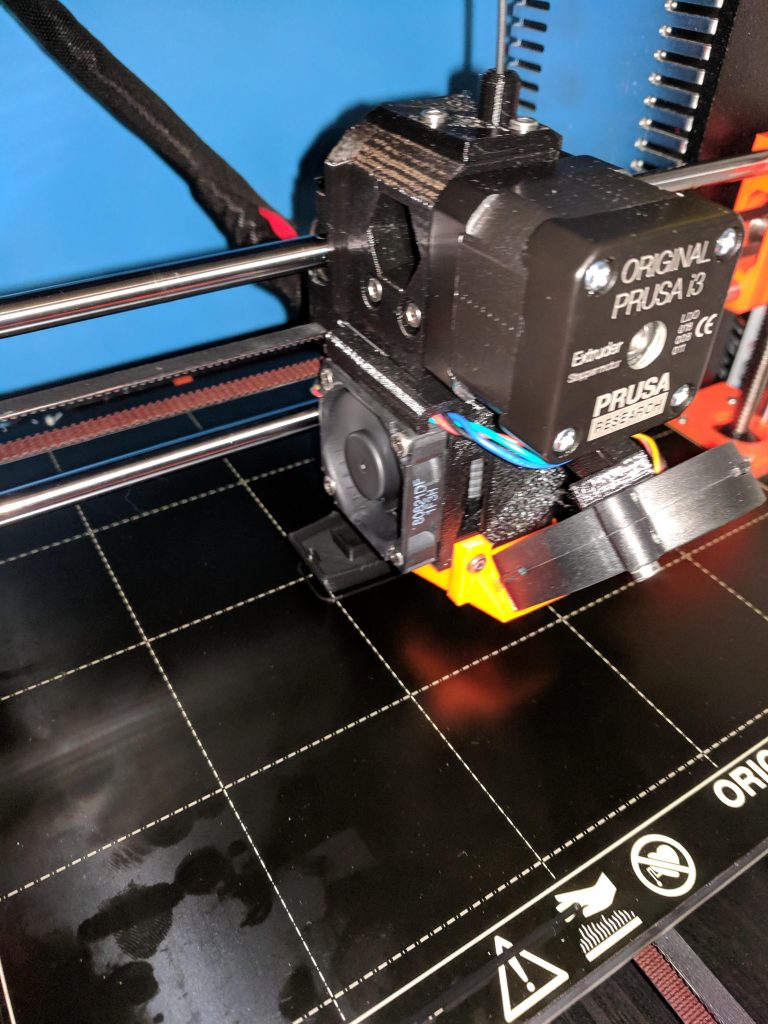
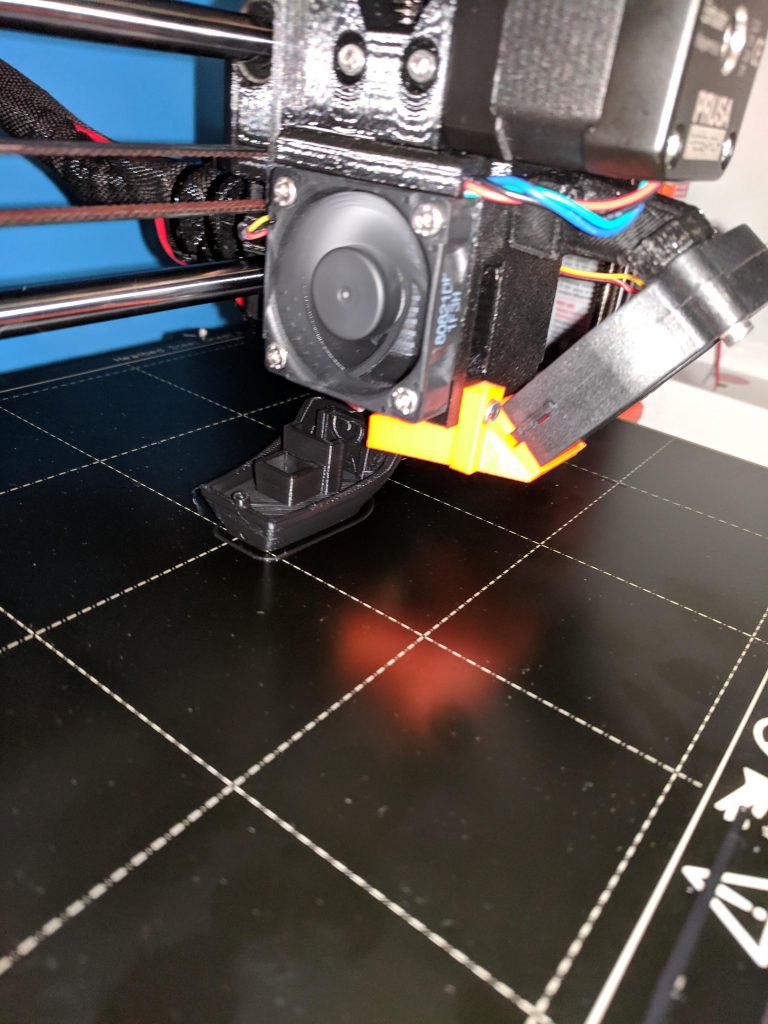
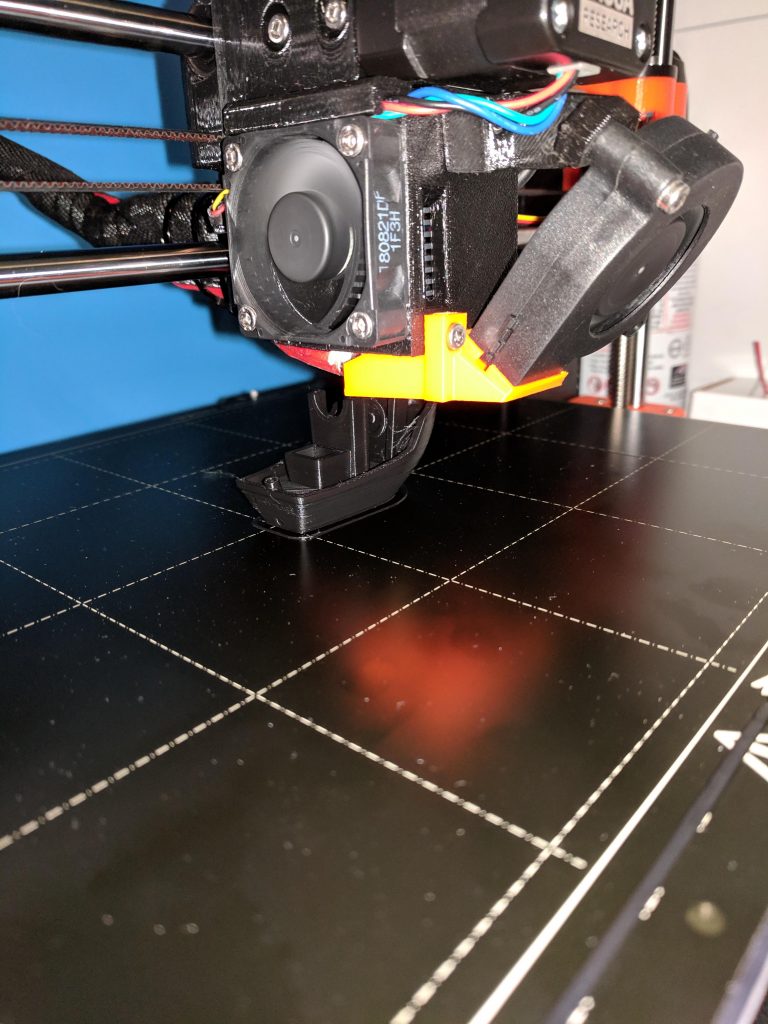
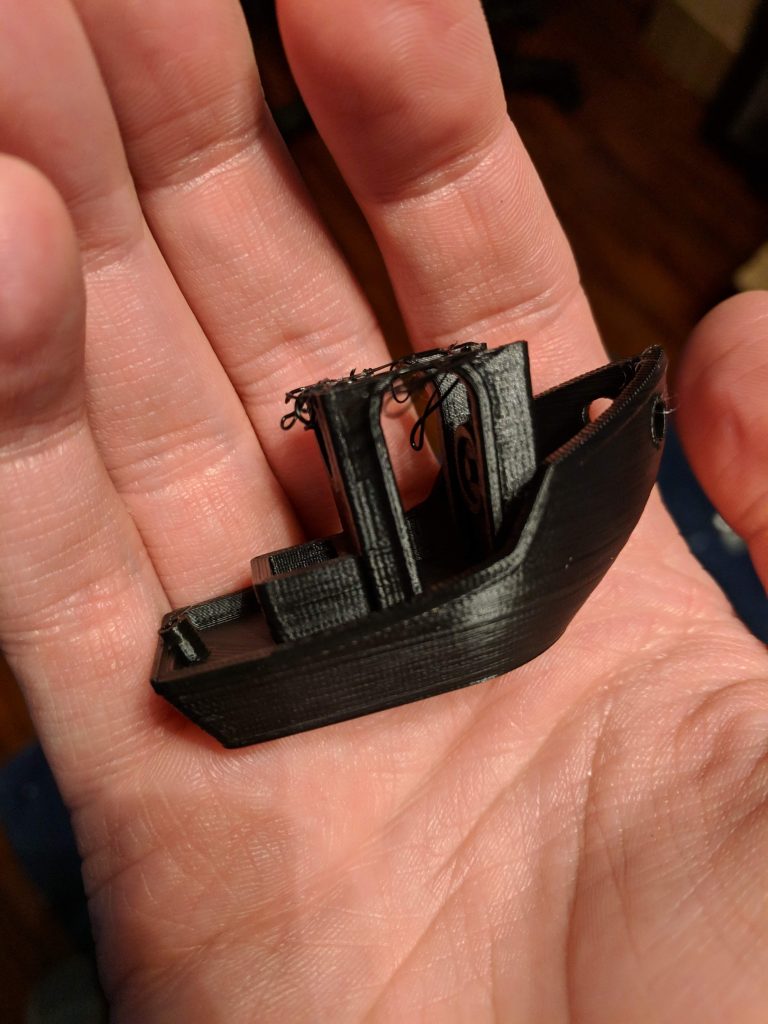
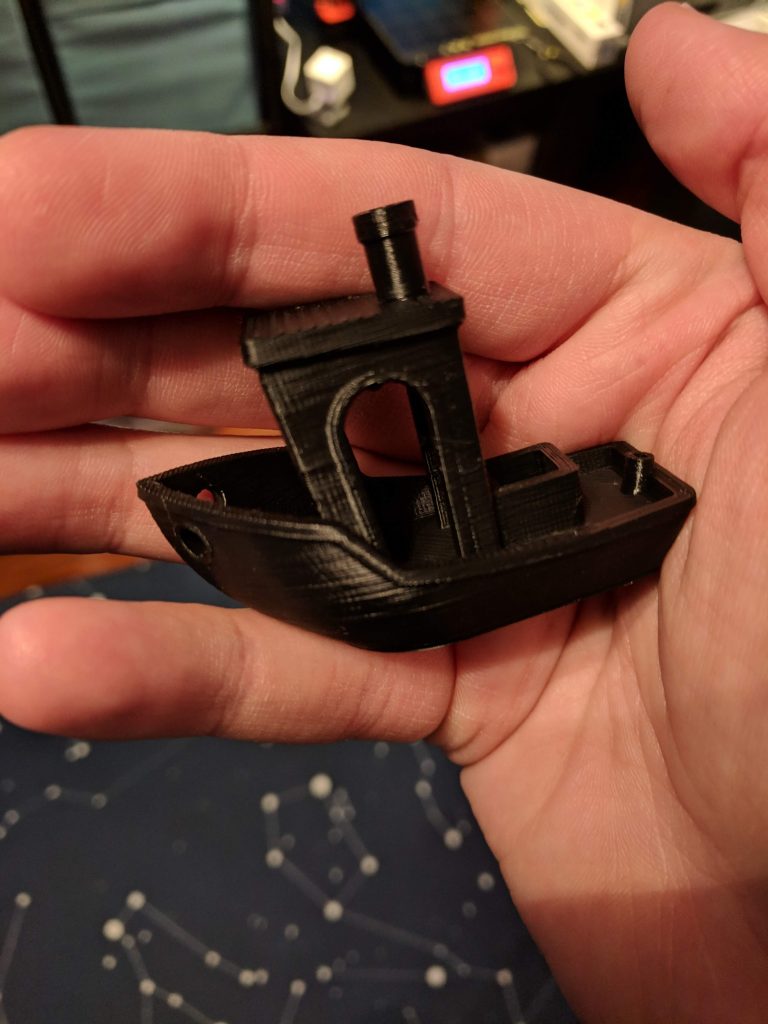
I started with the Benchy boat model since that practically seems a requirement. My first print was going extremely well until about 80% through when it suddenly popped off the bed with a loud snap. After wondering what went wrong, I noticed the temperature on the heatbed was slightly under what I had been reading online – instead of the 60C I had seen online, the default for the print was 55C. When you start a print, you can open the menu on the Prusa and tune the bed temperature; I did that for the next attempt and the result was perfect.

(On a side note – the default preheat setting for PLA has the bed at 60C. I still haven’t figured out how to make the print use 60C instead of 55C when I print straight from the SD card.)

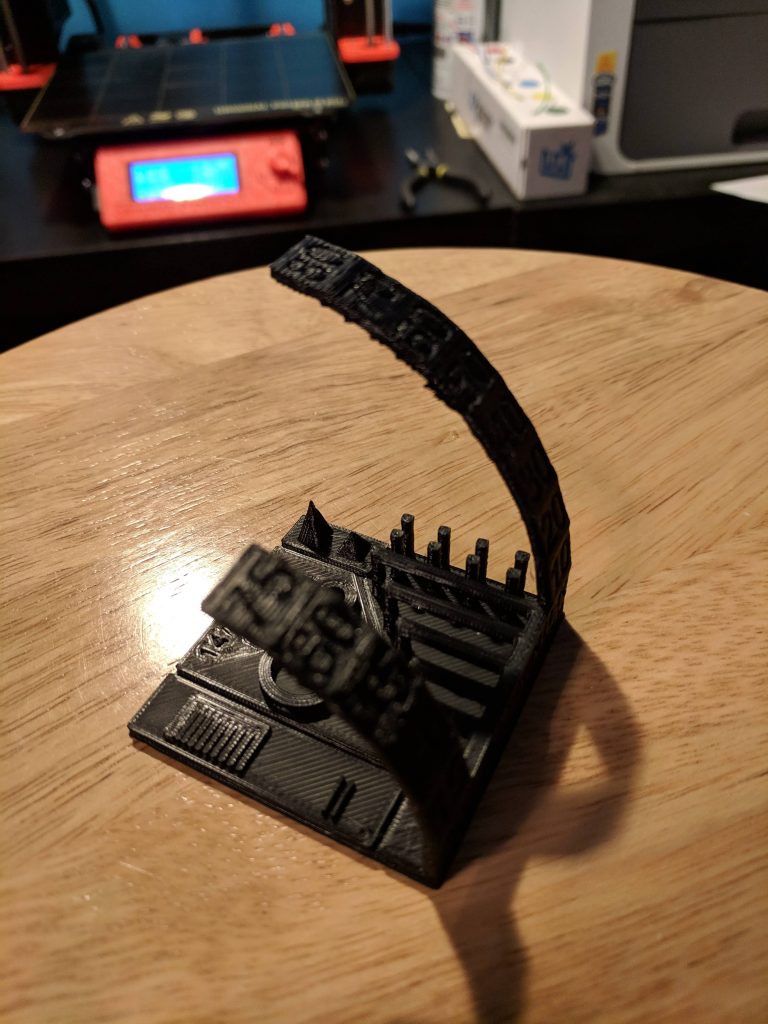
After finishing Benchy, I wanted to print another benchmark, so I used an All-In-One Printer Test I found on Thingiverse to see what the printer could do. Everything came out perfectly, and I was pretty impressed at how well overhangs and bridges can be made by the printer. Benchmarks tend to teach you a lot about how the printer works and what it’s capable of; I highly recommend anyone who gets a new printer try a few.

Thingiverse

A short aside about Thingiverse: it’s great. Before my printer arrived, I started looking through things there are found a lot I’m interested in. A few of my favorites:

A Super Mario question-block Switch cartridge case
A Lord Of The Rings dice bowl
Stackable battery holders
A clever Dremel table saw

There’s a lot there to give you ideas and save you time.

Fusion 360

I’ve been planning things to print for a while now, but I wasn’t sure of what tool to use. I was trying to find something free, so I started by downloading FreeCAD, but it didn’t seem especially usable. Once I found out that Fusion 360 (from Autodesk) has a free hobbyist license, I downloaded it right away to start tinkering.

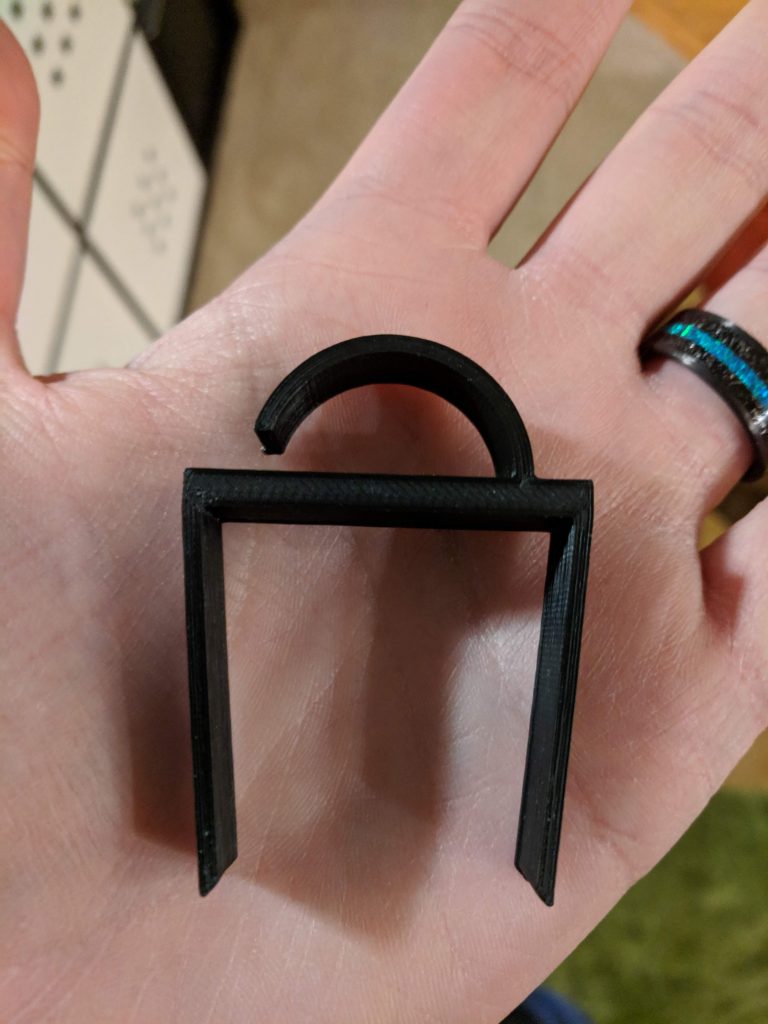
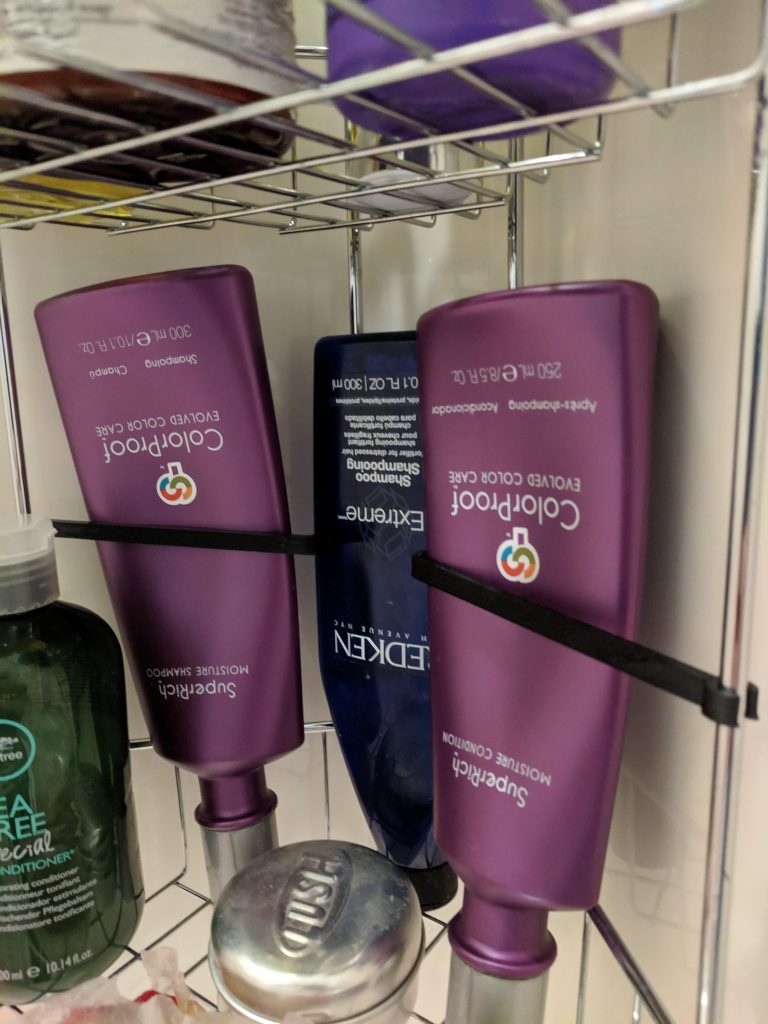
It took me a while to learn the basics, but I think I’m a solid novice now. After struggling to learn the controls and how to use some of the tools, I’ve been able to design several things for around the house. So far, I’ve designed two little baskets (which I have yet to print since they’re 11+ hour prints), a cable clip designed to fit Ikea’s KALLAX shelves, and a little arm to hold bottles in the shower upright when they’re turned upside-down. So far, the KALLAX clips have been my favorite. A solid little clip that blends in with my black shelves perfectly, and can hold a lot of cables securely.

Tools

As I started working on things, I realized there are several tools you’ll likely want if you’re designing things to fit specific spaces. Since I’ve been building little things for around the house, I needed some precision in my measurements.

  • Digital Calipers – Super handy. If you’re measuring something like the height of a shelf, or the diameter of a rod you want to clip something around, these are the tool to have.
  • Laser Measure – Handy for larger spaces where you need dimensions. I’ve used it to measure large board game boxes and spaces I want to fit something in.
  • Needle-nose Pliers – A good tool to have in general, but these come in handy if you’re working with supports (I haven’t yet) and need to detach them. A decent little pair is provided with the Prusa kit, though I’ll probably buy a nicer pair sometime soon just for working with prints.
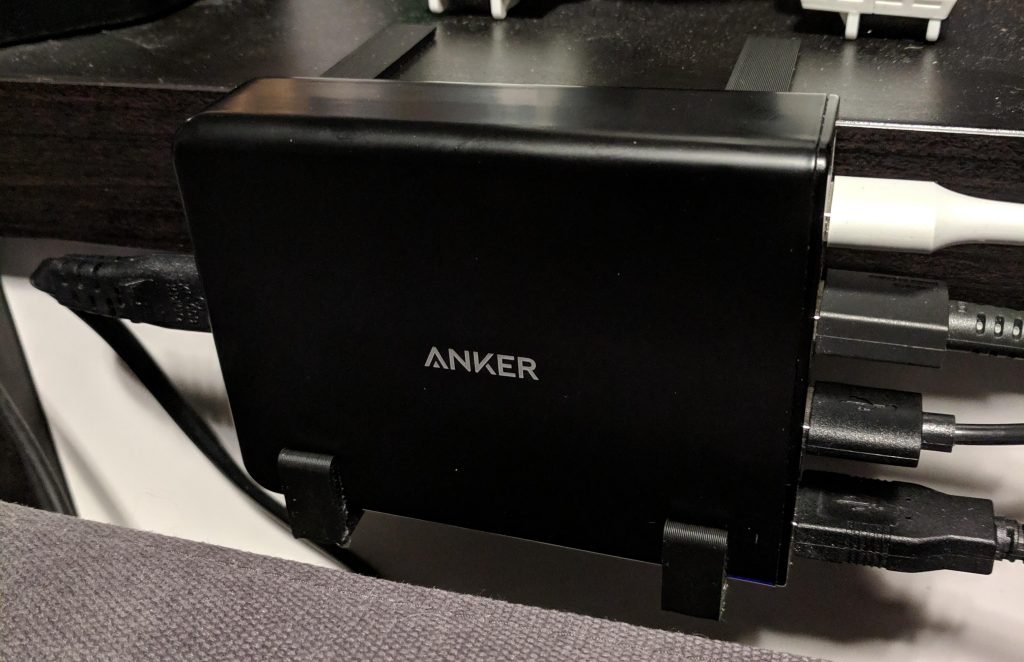
Custom clips designed to hold my Anker USB charger behind the couch.

Filament

I had read a lot about filaments but decided to go with Amazon’s filament, which is cheap and comes in a variety of colors. I’ve only used the black so far, but I’ve had no problems with it. I’m definitely not an expert, but it seems like a fine filament for most uses.

I bought a 3-pack of Amazon’s black filament (which I can’t find on their site anymore), which brought the price per spool to $13.19, which is a fantastic price. Their other colors are about $17-$18 per spool, which is a great price compared to most other filaments. I’ve already spent about $200 in filament to get a variety of colors, but the cost would have been much higher buying other filaments.

I’ve also bought a spool of glow-in-the-dark and rainbow filaments to try out. It turns out there are a lot of options with filaments: matte, glossy, rainbow, glow-in-the-dark, color-changing, metal or wood colored, and even actual metal or wood (there’s shavings or something in the filament; but I’ve heard these can clog nozzles pretty easily).

Monitoring and Remote Control

With some long prints, I want to be able to monitor and control things remotely so I can kick something off before I head to work and keep an eye on it throughout the day. It turns out there’s an OS for the Raspberry Pi called OctoPi designed to do just that. I bought a Raspberry Pi 3 B+ kit on Amazon and installed OctoPi on it, and it’s hooked up to my printer and I’ve been able to control it through OctoPi’s web interface. My router is giving me some problems right now, however, so I haven’t been able to access it from outside my LAN.

I also bought a cheap internet-connected camera from Amazon: the Wyze Cam. It’s a decent little camera. However, after I bought it, I learned that OctoPi can control webcams and make time-lapses automatically, so I’ll likely be buying another camera just for that purpose, assuming I can’t find one of my ancient webcams around here.

Categories
Games

Rift Core 2.0

I was recently playing some new VR games (Scanner Sombre and Psychonauts and The Rhombus of Ruin), and found the Oculus interfaces have seen a major upgrade – both Home and their dashboard are much nicer now. Since it’s been a pretty pleasant experience, I decided I’d write a quick post about it.

Your Virtual Home

Oculus Home used to be very boring. It was a pretty environment for you to stand in place and view the store and your library. I enjoyed my SteamVR home much more – you could customize everything and viewing your library was a small part of what your home was. SteamVR still has some advantages over Oculus Home (there’s scavenger-hunt like stuff in different worlds, and some of the informational screens in the home are more useful), but Oculus Home is quickly becoming just as good (if not better).

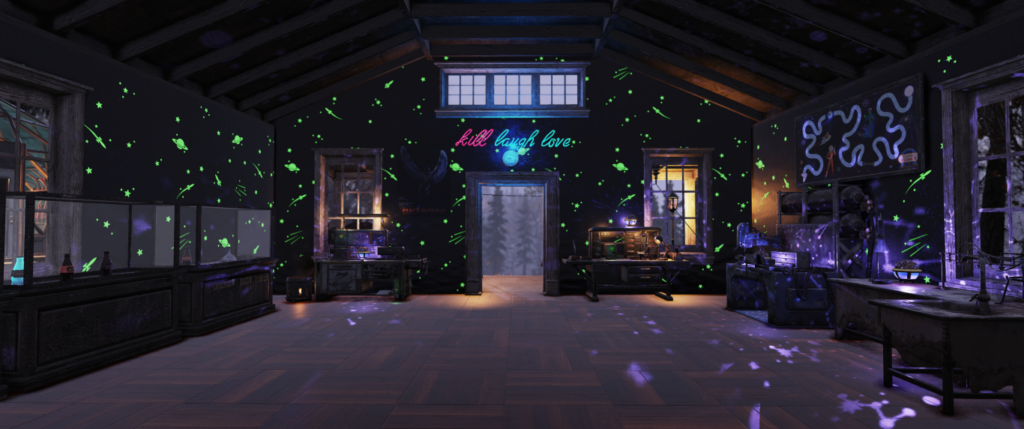
First off, your Oculus home is now customizable. The shape of the home is always the same, but you can change the ceiling, floors, walls, and items in the room. I changed mine to a sci-fi looking home that looks out on a sun and planets. Within the space, you can place decorations like tables, shelves, seating, lamps, and plants to make it your own. There are also several “toys” you can place, like a blaster, a bow, and targets to shoot at. You can also place a VR game console and cartridges based on the games you own. You can put a game in the console to launch it. It’s a fun way to interact with your library. And just like Steam, you can unlock new items over time, mostly just by playing.

You can also place TV screens and add a stream to them. Currently I can only add my desktop, but I could see this being used to display Twitch streams or YouTube videos (if they ever do something like that).

I don’t often make use of the social aspects in most VR games (or any game, really), but you can also invite other people to your Oculus Home and interact with them. Steam has done the same for a while now, but it’s nice to see Oculus finally catching up.

The new Dashboard – “Dash”

Along with the home update came a change to the dashboard you can bring up while in games. The old dashboard was dull – a flat panel in a big empty room. The new dash is still in a big empty room, but you now have an arc of buttons that float in front of you (like Windows’ taskbar), and you can easily navigate to the store, your library, social areas, or back to your home.

My favorite part of the new dashboard is the virtual desktop they’ve added. This was always an area where Steam was way ahead – being able to interact with your desktop within VR was necessary sometimes; I even bought a virtual desktop application a few years back when Oculus didn’t have their own. The virtual desktop Oculus implemented is easy to use and fits in with the rest of their new Dash UI very well. There’s even a beta feature where you can pull windows off your virtual desktop into their own VR windows. I can now edit spreadsheets in 3D! Apparently you can also pin windows so they stay visible while playing other games. I can watch Netflix in my spaceship in Elite or watch YouTube tutorials while I play a game.

Another feature that I really enjoyed was a simple VR watch you can strap to your virtual wrist. It shows the date and time and has a few buttons for quick navigation to some areas (like notifications). It’s a little touch that’s really nice to have. Unfortunately, it only shows up when you’re using the new dashboard or in your home.

I’ve also noticed Oculus will track any VR application you run, bought from the Oculus Store or not. This is great because I can now easily launch my Steam games without having to launch SteamVR first. If I could link my Steam library to Oculus somehow, I’d probably never need to launch SteamVR again (unless I wanted to, of course).

With the new UI, I’m actually much happier with the Oculus experience. Steam was certainly faster to make the home experience better, but I’m happy to see Oculus finally catching up. In the past, I’ve really only used the default Oculus apps until I got SteamVR running. Now, I’ll probably stick within Oculus’ realm most of the time. Which was probably the goal to begin with.

Categories
Games

Games of 2018

It’s been a few years since I kept track of the games I played over a year and what I thought of them. I’d like to get back to that, if just to give me more opportunities to write something. I didn’t keep track of everything I played in 2018, so this list is mostly the highlights from 2018 (or at least what I can remember).

Legend
🌟 Beat the game.
🏆 100% cleared the game, including all achievements.
👍 Recommended if you haven’t played it.
👎 Avoid it. It’s terrible.

PS4

Spider-Man 👍
One of the best games this year. Insomniac nailed the web-slinging and it feels great just to swing around the city. This game made me feel like Spider-Man.

Dad of Boy God of War 👍
Still haven’t managed to finish this one, but it won GOTY, so it must be good, right?

Shadow of the Colossus

Okami HD

Switch

Super Smash Bros. Ultimate 👍
Aptly named – I feel like this is the perfect way to play Smash Bros. It’s got loads of content and the Switch is the perfect platform: you can start it up, play a few matches, then put it down and pick up right where you left off.

Starlink – Battle for Atlas
I wasn’t sure what to expect of this game, but I kept hearing it was a cross between Star Fox and No Man’s Sky. That was enough to get me interested, but the toy Arwing you get with the Switch was what pushed it over the top. It’s fun to change the equipment on your physical toy and see the game respond to it, but the toys aren’t really that important to the game. Unfortunately, if you want more equipment, you have to buy those toys.

Mario and Rabbids Kingdom Battle

Kirby Star Allies

PC

Oxygen Not Included
The only game that has come close to topping Kerbal Space Program in total play time. This game is cute, fun, tough, and science-y. There’s never really a point in this game where you can sit back and relax – there’s always some new problem you need to work on. And the number of ways you can solve problems is amazing.

Surviving Mars
Came back to this after some time away and some new DLC. Still fun and scratches the same itch that Oxygen Not Included does.

About the best you can hope for.

Frostpunk 👍
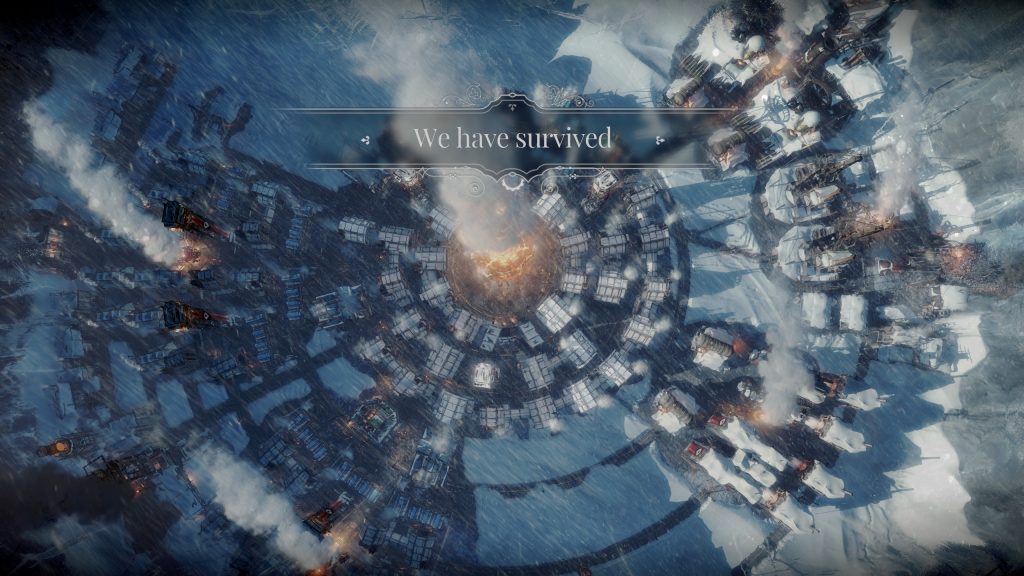
Yet another survival strategy game. (I’m sensing a theme…) Frostpunk is hard. It’s from the creators of This War of Mine and is similarly brutal. Victory in this game is marked by a message simply stating, “We have survived”

The Universim
A mix of Populous and Civilization. Still early in development, it’s a fun little game where you play as “The Creator”, helping a tribe of “Nuggets” grow and thrive, eventually progressing through technological eras and into space. It’s a bit ambitious, but it’s doing well so far.

They’ll never see it coming.

Bomber Crew
This game took me a bit by surprise. I watched the videos and thought it looked pretty good, and when I bought it, it didn’t disappoint. You get to manage your own WWII-era bomber and crew, and send your bomber out on missions to earn money to purchase upgrades and hire more crew members. Surprisingly fun, and can be pretty tough.

I just wish I wasn’t so scared to fly it.

Elite: Dangerous
I need to play this more often. I finally have a nice ship to work with, but I need to do some upgrading.

Two Point Hospital 👍
It’s Theme Hospital in all but name!

I Expect You To Die 👍
The best VR game I’ve played. It’s funny, it has a catchy theme song, and it’s fun to play. My only complaint is that it’s a bit short; I would love to see more levels added as DLC.

Interkosmos 👍
Speaking of funny VR games, Interkosmos is a hilarious, chaotic, and sometimes terrifying experience.

Subnautica
Subnautica saw its official release this year. I refuse to play this in VR.

Into The Breach

BattleTech
A great turn-based strategy game. I just wish I was better at it.

No Man’s Sky
I’ve always liked No Man’s Sky, even when it was just a chill single-player galaxy exploration game. I’m just glad everyone else is getting to enjoy it now. And the updates have made a huge difference – it is far better than it was.

Star Control: Origins
It’s good old Star Control.

Tabletop

I haven’t included tabletop games in the past, but I have a lot of them and enjoy playing them, so it seemed like an appropriate section to add.

Splendor 👍
I’ve owned this one for a while and recently played it with some new people. Still a fantastic game.

Sagrada 👍
It’s a puzzle game in board game form with pretty dice. Easy and fun.

Azul 👍
Got this one for my wife for Christmas. It’s a lot like Sagrada – easy to play, colorful, great components. There’s a reason why it has won so many awards.

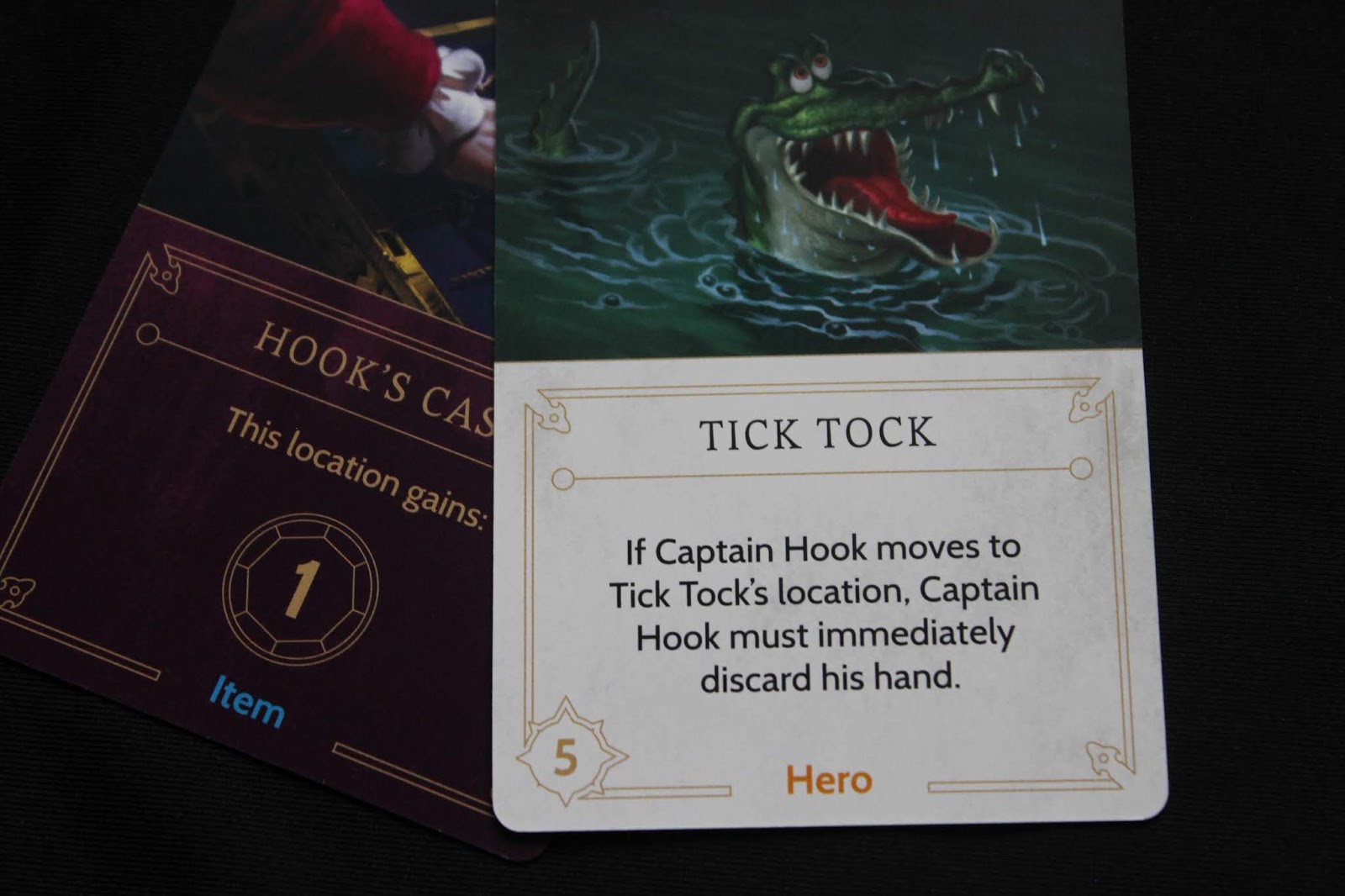
Tick Tock is my favorite card in Villainous.

Villainous
I was thinking about getting this for my wife but I hesitated since it’s a board game about Disney IPs. I started hearing some good things about it so I bought it. Turns out it’s really fun. Each player has a completely different goal (which makes it difficult to help other players in the first game) and can meddle in other villain’s realms to slow them down. Knowing the films makes the goals easier to understand and makes the game a bit more fun. I played Captain Hook and murdered Peter Pan just before Jafar managed to get the Magic Lamp to the Sultan’s Palace.

Photosynthesis
A game about growing trees. Great components and a pleasant theme.

Roll for the Galaxy 👍
I’ve owned this for a while and finally got a chance to play it with my brother over the holidays. It’s a cross between Race for the Galaxy and Yahtzee. Much easier than actual Race for the Galaxy, but still manages to capture a lot of the depth of the original.

Talisman 👎
Played the physical version of this recently after playing the digital version a while back. Personally, I think Talisman is a very poorly designed game. There are some spaces on the board that are only there to slow down progression, and there’s too much random luck involved.

Mysterium
This is a great co-op game, though I’d never want to be the ghost. Too much pressure.

Marrying Mr. Darcy
I can’t stand Pride and Prejudice, but this game is actually a lot of fun.

Potion Explosion
The marbles in this game always make it fun.

Scoville
The names of the creations in this chili-making game are part of the fun.

Terraforming Mars
Great game with a lot of depth. I need to play this one more often.

Joking Hazard
Better than Cards Against Humanity.

Fire of Eidolon
A co-op game in a small box with an 8-bit art style. There’s a lot of nostalgia baked in, but it’s also a decent yet simple dungeon crawler.

Knit Wit

Ladies and Gentlemen

Kingdomino

Lanterns

Tiny Epic Zombies

Tiny Epic Defenders

Scythe
Played a short learning game with my wife. I’d like to play a full game at some point.

Loonacy

Spaceteam

Exploding Kittens

Bears vs Babies

Flash Point

Magic Maze

Illimat

Categories
Development

Cloud Blogging

Time for an update on my adventure in cloud hosting my blog. It’s been less than a week, but I think I’ve found a clear winner. (For my purposes, at least.)

Cost

To run my blog, I need a VM to serve it, some disk storage, and a DNS to point my website at it. The total costs in Azure and GCP come out something like this:

AzureGCP
VM$9.50
(with 1GB storage)
$13.80
(with 30GB storage)
Storage$0.00 (included in VM)$0.00 (included in VM)
DNS
(1 zone, 1M queries)
$0.90$0.60
Total Monthly$10.40$14.40

By those numbers, GCP is more expensive. However, both Azure and GCP offer a free tier. Unfortunately, Azure won’t let you use a custom domain for a free-tier application. And since “shawnweaver-blog.azurewebsites.net” just doesn’t roll off the tongue like “blog.shawnweaver.com”, I want to use a custom domain, which means Azure’s $10.40 cost is basically the minimum. GCP, on the other hand, doesn’t have this restriction, making the total cost of the VM and storage $0.00, leaving only the $0.60 for the DNS, which makes GCP the clear winner. (The paid-tier VM from Azure is obviously more powerful, but I don’t need that power, so it’s a moot point.)

In addition, GCP charges for use whereas Azure charges per application. This means that if I have my blog set up in an app service but leave it turned off all month, I still pay the whole $9.50. With GCP, I’d be charged nothing for the VM if it wasn’t running (I’d pay only for the storage). This just seems ridiculous and I’m not sure why Azure works that way.

GCP lets you set budgets and alerts as well, to help make sure you don’t blow your budget by accident. Azure appears to have some cost management features, but they’re currently limited to enterprise agreements (support for other plans is supposed to be coming soon).

On top of all this, GCP also has something called a “sustained use discount” – the longer something runs, the less you pay for it. This seems especially targeted at VMs that run constantly, though it applies to anything. As long as I’m using the free-tier resources, this won’t really matter, but if I ever want to play with some new technologies, it might come in handy.

Usability

Both Azure and GCP offer a lot of the same options, so I’m not going to compare them individually. Instead, I’m going to focus on some of the little things that I’m actually interested in.

Azure seems to have some more power in the UI; I don’t need to drop to a command line to do some common tasks. GCP requires a command line for anything beyond the basics. Both Azure and GCP have a cloud console where you can perform all sorts of actions, and they both have a nice customizable dashboard to monitor whatever you want.

Azure and GCP both have a pretty easily navigable interface, though Azure makes it very easy to just start adding something new; GCP takes an extra click or two. They both have a marketplace full of ready-made resources (like WordPress deployments).

The mobile apps for Azure and GCP are pretty similar, but GCP’s seems more robust. With Azure’s mobile app, you’re limited to checking the status of resources, starting and stopping resources, and using the cloud shell. In GCP’s app you can do all those things, but can also manage those resources much better – you can create disk snapshots and download files from storage, for instance (and I assume the other products have similar control through the app). I also find GCP’s app generally easier to navigate; in general, it just feels a bit more modern.

Summary

I prefer how GCP works and charges for use. It fits my budget and how I plan to use everything – short bursts of use and development instead of running constantly. A few things were easier to set up (like hosting static web pages with a custom URL), and I can expect any tinkering I do to cost a lot less than it would on Azure.

What about AWS?

I looked at their pricing calculator and cringed (it seriously looks like it’s from the 90s). And when I clicked their “Free Website on AWS” example and it showed my estimated monthly cost of $594.97, I was pretty much done (why their “free website” preset uses XL VMs, I don’t know). Feature-wise, it looks like AWS is more-or-less equivalent to Azure and GCP, and their pricing sounds more like GCP than Azure. I was just immediately turned away by their site and cost calculator.

Side note:

Why does everyone have to use their own terms for all this stuff? Azure has “App Services”, GCP has “Compute Engine”, and AWS has “EC2”. They’re all cloud VMs. It’s incredibly annoying trying to figure out what’s what when moving between these services.

Categories
Development

Google Cloud Platform

I decided while I was tinkering with Azure, I’d give Google’s Cloud Platform a test, too, and see which is best for what I need – simple, easy hosting for a low price, with some room to play and grow (for a similarly low price).

Looking over Google’s pricing, it seems like I should be able to host my blog for pennies since it’s so low traffic. The big difference between Azure and GCP seems to be how they charge. Google charges based on use – their billing model indicates that they charge for a minimum of 1 minute, and after that charge per second of use. At worst, it looks like I’d pay $15/month to use my blog VM for the entire month; which is extremely unlikely. Azure, on the other hand, charges for the application, so regardless of how much an application is used, you pay as if it ran the entire month. Regardless, Google provides a nice $300 credit for the first 12 months, so I can figure things out as I go. (Azure provides a $200 credit for the first month, so Google’s credit is much nicer here.)

I’ll say that Google’s management site is a lot prettier than Azure’s (more modern-looking with Google’s Material Design), but basically has all the same stuff. Like Azure, they had a WordPress template I could install and start using right away, and I migrated my content across to it. Setting up a redirect seems to work as well, and unlike Azure, GCP doesn’t appear to have any limitations on what projects can be given a custom domain. If that’s the case, I’ll likely be moving entirely to Google soon, as I have several small projects I’d like to give a custom address under my domain name. On Azure, I’d be paying about $10/month per project – whether that project is running or not – just to be able to give that project a nice URL.

The only issue I’ve had with Azure was with their pricing as I ran my blog and learned more about how they charge. Since they charge per resource (application, database, storage, etc.), you have to pay whether you use it or not. Google, on the other hand, appears to only charge based on use. If your application is bursty like my blog (only needs to run when I’m actually working on it, or when people are reading it), Google seems like the superior platform cost-wise. In addition, Azure forcing me to use a paid-tier just to give my application a nice URL on my domain is difficult to accept. With Google, my basic-tier VM has an IP address I can set up with an A record and everything just works.

It looks like Google has just as much capacity to scale as well. I can upgrade or downgrade my blog VM by stopping it and changing the machine type.

My assumption is it has to do with how the “clouds” are handled between Azure and GCP. With Azure, it seems like you’re dedicating specific hardware resources to an application (even in their “shared” tiers), while with GCP you’re making use of a big “cloud” of vCPUs and memory. If that’s the case, it seems like GCP is more like how I’d expect “cloud” hardware to work. It makes Azure feel a bit old-school… Though this is still all automatic hardware management and virtualization distributed across multiple regions, so they’re both very state-of-the-art in that regard.

I’ll post again once I’ve had more chance to compare the costs between GCP and Azure. Right now, GCP seems like it’s going to be the winner. I’ve only been with Azure a few days, but I’ve already racked up $12 in costs by running application services I wasn’t using (under the false impression that I wouldn’t pay if I wasn’t using them), and using a MySQL database resource for my blog (which could have been run in the application service for no extra charge). It’s only been a day with GCP, but my total cost so far is 20 cents. If the trend continues, I’m still only looking at maybe $6 with GCP, which would be on the high end since I’m spending a lot more time on my blog with all this tinkering I’m doing…

Categories
Development

Moving to Azure

I’ve been thinking about moving my website to Azure for some time now, and when my web hosting provider decided to move me to a higher-priced plan without telling me, I decided it was a good time to make the switch. Moving my blog here has been incredibly easy, and Azure opens up a lot of opportunities for development.

Even as a developer, Azure can be a bit intimidating. Azure is an incredibly powerful platform; you can run VMs, run bits of code at large scale and blazing speeds, you can create triggers to, say, process files when they’re uploaded. That’s really only scratching the surface, but my point is there is a lot you can do. Microsoft has packed all that in a relatively easy to use interface, but it can still be difficult to navigate at first simply because there’s so much.

Fortunately, there’s a WordPress app service template that you can set up in a few clicks. Within seconds, you have a fresh WordPress install. Moving my content to the new site was easy because WordPress is awesome and has a fantastic backup and restore tool built-in.

Getting my DNS settings configured properly took a little longer, but I managed to fumble through it. After I created a DNS zone in Azure and switched to their DNS servers, I was able to configure all my entries within Azure, so I don’t even have to go to my domain provider to fiddle with them anymore.

All this power and the possibilities don’t exactly come cheap. My previous hosting plan was about $10/month (which they were raising to $12/month), and hosting just my blog on a shared plan (so I can use my domain name) will cost about $9.50/month, not including the database (which I can probably move to save some additional money). There’s a free tier you can use for development and testing, but you can’t use a custom domain to access the application (you have to use your azurewebsites.net address), so it’s not the best option if you’re trying to host something more publicly available.

Overall I’m satisfied with this initial step into Azure. The chance to work on some more interesting projects will be fun, and the ability to easily scale if I ever develop something successful is nice. I’ll try Azure for at least a few months and see if it’s the right place for me.

Categories
Games

Dead and Buried

Since I’ve got an Oculus Rift with Touch controllers now, I figured I’d start posting about games I’ve played and the experiences I’m having. First up is a game I got for free with the Touch controllers: Dead and Buried.

Dead and Buried is a pretty basic first-person shooter. There’s a single-player shooting gallery that’s pretty neat but a bit boring. It’s great for improving your aim, though. The real draw of Dead and Buried is its multiplayer modes, of which there are four: Quickdraw, Shootout, Robbery, and Horde. Each mode supports 2 – 4 players.

Quickdraw is exactly what it sounds like. The players go one-on-one in quickdraw duels. Each player has three lives, and the last man standing wins. The one time I played this, I lost every duel and was left on the sidelines to stand and watch everyone else duel. It’s a neat game mode and certainly appropriate, but wasn’t very fun. Maybe it’d be more entertaining if I had better aim.

Shootout puts two teams against each other with a time limit. When you die, you spawn at a new location around the area and continue the firefight. There are also various weapons hidden at some locations that you can use if you spawn near them. Sometimes a shotgun will be lying on a table near you, or a stick of dynamite on the floor beside a column. Occasionally you’ll spawn in an area with very little cover and die pretty quickly, but overall it felt balanced. Most games ended with only a few points separating the two teams. This was the most fun competitive mode for me.

Robbery is another team-based mode where a team of outlaws tries to rob a safe while another team of good guys tries to stop them. There are several battles that play out before the safe. If the good guys win enough battles, they win by driving away the outlaws. If the outlaws win enough battles, they get a chance to crack the safe. Things seem fairly even (maybe the outlaws have a slight edge) until the safe, where one outlaw has to cover the other while they unlock the safe. This seemed really unbalanced and the good guys won every time I played.

Horde is the game’s cooperative mode, where the players are all on the same team with a shared set of lives. Zombies enter the area and shamble toward the players. If the zombies get close enough, they’ll start to destroy your cover. If they get through your cover, they’ll kill you. Between waves you’ll be able to spend coins you’ve earned (by killing zombies) on cards to repair your cover, get new weapons, or gamble for a random buff (or penalty). Every map has a theme and an appropriate boss that appears every few levels. I’ve played this mode the most because I tend to prefer cooperative experiences, and it’s really fun and chaotic.

In Shootout and Robbery, cover plays a big part of the game. There are crates, tables, and walls that you can duck behind, and you can work up a sweat while playing. I would crouch or stand on my knees to hide behind cover, either popping up my head to aim and shoot or firing blindly. My girlfriend says I looked ridiculous.

Dead and Buried doesn’t do a lot (it’s a pretty straightforward shooter), but it does it well and in a fun, stylized way. It’s a good VR experience and definitely worth playing.

Categories
Games

Oculus Touch

I bought an Oculus Rift back in October and I’ve been enjoying it, playing whatever I could find that worked well with a VR headset and controller. My favorites are House of the Dying Sun and Lunar Lander. (Elite: Dangerous is also great but I’m terrified of destroying my ship repeatedly and becoming penniless.) I pre-ordered the Oculus Touch controllers and they arrived a few days ago. I’ve been playing Touch games constantly since I got them and the experience is absolutely incredible.

I’ve played games with an HTC Vive at a friend’s house and they were always a lot of fun. Vive’s wands have a good feel and are easy to use. And while the Touch controls have similar inputs (trigger, grip, control pad/stick, a few buttons), the way they feel in a game is significantly different. The Vive wands are represented in VR as a device you’re holding (similar to the wands themselves), while the Touch controls are represented as your own hands. These virtual hands mimic your real hands around the controller. It sounds like it might be a little weird, but the controls are so well done that it works out incredibly well.

The accuracy of the virtual hands hit me when I was talking to my girlfriend in my living room. I was in the Oculus Home app (after playing Bullet Train) and I turned to talk to her, looking through the gap around my nose. I was gesturing toward her, and I noticed that where my real hand ended, the virtual hand began, and it was matching my gesture perfectly. I was pointing toward her, and my virtual finger was pointing just like my real hand. It was incredible. I moved my hand a bit and the virtual hand was matching the position and gesture pretty accurately.

In games made for the Touch controls, you can really start to feel like your hands are in the game. Holding weapons just feels right, whether you’re holding a handgun, a rifle, a bow, or a sword. Gestures can be done with broad motions or pointing. You can communicate with other players by pointing (👉), thumbs-up (👍), or OK’s (👌). I saw two players fist-bump. Then I learned I could make obscene gestures (👉👌). It’s awesome. Playing games designed for Vive’s wands don’t have quite the same level of interaction.

The only downside to the Touch controls are the downsides to the Oculus itself. The cameras certainly aren’t as good for room-scale, and their tracking isn’t as precise as the Vive. For games that are mostly forward-facing (and many games are), the Oculus works perfectly fine, and the setup with two cameras along the same wall is a bit more convenient than Vive’s opposite corners setup. You can still look around or behind you, but interacting with things directly behind you can be an issue if you hide a controller from one of the cameras. However, the precision is generally good enough, and most games tend to keep you facing forward, so these downsides are relatively minor.

Overall, I enjoy the Touch controllers more, but honestly, both HTC and Oculus have great VR products. UploadVR has a comparison of the controllers from back in June that I’ve found pretty accurate.

Now I’m eager for Steam’s winter sale so I can stock up on VR titles…